Why Your WordPress Emails Aren’t Sending (And How to Fix It With SMTP)

Quick Answer
WordPress emails may fail to send or arrive because the site’s mail environment is misconfigured, sender authentication is missing, SMTP or API credentials are incorrect, or receiving providers filter or reject the message. A reliable fix is to route WordPress email through an authenticated transactional provider using SMTP or a supported API, then configure SPF, DKIM, and ideally DMARC.
Why your WordPress emails aren’t sending can usually be traced to a misconfigured mail setup, missing sender authentication, incorrect SMTP or API credentials, or filtering by the receiving email provider.
If you manage a WordPress website or an e-commerce store, you know the daily challenge of opening your queue to find repetitive support requests or realizing critical notifications failed to fire.
Imagine a customer trying to reset their password, but the email never arrives. Worse yet, a new order comes through on your WooCommerce store, and you only discover it hours later because you didn’t receive a notification.
You are not alone. In this comprehensive guide, we will explore why your WordPress emails aren’t sending, how to diagnose the underlying issues, and exactly how to fix deliverability using authenticated email providers.
Table of Contents
Why Your WordPress Emails Aren’t Sending?
When an email fails to arrive, it is usually because of one of several common technical or configuration bottlenecks rather than a single point of failure:
- Default WordPress Mail Setup: WordPress uses
wp_mail()to prepare email and pass it to PHPMailer. In its default configuration, PHPMailer uses the server’s local PHP mail environment, which depends on the hosting server being configured correctly. - Hosting and Server Limitations: Some hosting environments restrict or poorly configure outgoing mail, which can prevent messages from being sent reliably.
- Incorrect or Misaligned Sender Address: Using a From address that is not authorized by your email provider or properly aligned with your authenticated domain can contribute to authentication or delivery problems.
- Authentication and DNS Problems: Missing or incorrectly configured SPF, DKIM, or DMARC settings can increase the chance that receiving providers reject, quarantine, or classify messages as suspicious.
- SMTP and API Configuration Errors: Incorrect ports, encryption settings, expired credentials, or invalid API keys can prevent WordPress from connecting to the selected mail provider.
- Sending Quotas and Rate Limits: Your email provider may temporarily reject messages if you exceed its sending limits.
- Spam Filtering vs. Sending Failure: Messages without proper authentication are more likely to be filtered, rejected, or treated as suspicious by receiving providers.
Support Genix
WordPress Support Ticket Plugin
Take Your Customer Support to The Next Level and Boost Customer Satisfaction Rates
How to Diagnose the WordPress Email Problem First
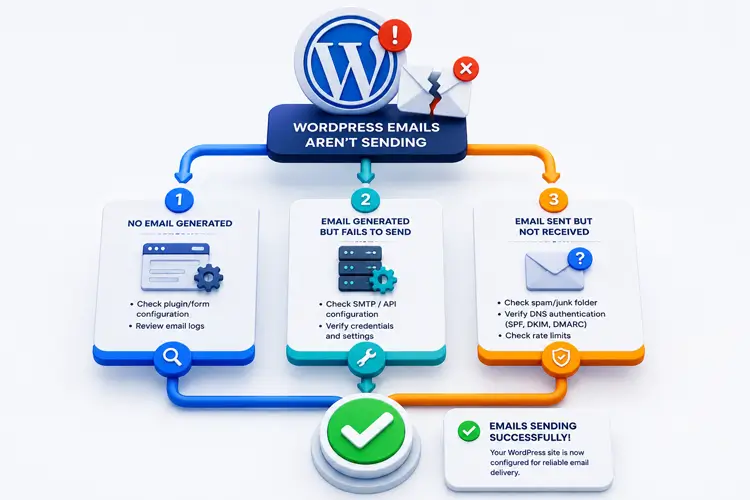
Before changing your settings or installing new tools, you need to identify where the break occurs in your workflow.
DIAGNOSTIC FLOW

1. No email generated → Check plugin/form configuration and email logs.

2. Email generated but sending fails → Check SMTP/API configuration and credentials.

3. Email sent but not received → Check spam filtering, DNS authentication, sender reputation, and rate limits.
Check Your WordPress Email Logs First
An email logging tool can help you determine whether WordPress actually attempted to generate the message.
Depending on the logging solution you use, logs may help you review:
- Whether the message was successfully triggered by your form or WooCommerce.
- The exact recipient and sender details.
- Any error messages or responses returned by the mailer or server.
- Whether authentication failures occurred during dispatch.
This distinction matters because an SMTP plugin cannot fix a form or plugin that never triggers an email in the first place.
Understanding Sending, Delivery, and Inbox Placement
WordPress documentation notes that a successful return value from a sending function only means the mail environment processed the request without throwing an error. To troubleshoot effectively, separate these three concepts:
- Sending Failure: WordPress or your provider cannot hand off the message.
- Delivery Failure: The message was handed off, but it bounced, was rejected, or was rate-limited.
- Inbox Placement Problem: The message was accepted by the server but landed in spam or promotions folders instead of the inbox.
How SMTP and Transactional Email Providers Fix the Problem
WordPress uses wp_mail() to format and submit email through PHPMailer. In the default WordPress configuration, PHPMailer uses PHP’s local mail mechanism.
That setup can work when the hosting mail environment is configured correctly. However, business-critical websites often benefit from routing outgoing messages through a dedicated authenticated email provider instead.
An authenticated transactional provider gives WordPress a dedicated sending infrastructure and allows you to configure domain authentication such as SPF, DKIM, and DMARC.
Think of local server mail as handing a letter to a local courier whose reputation you do not control. Using an authenticated transactional provider is closer to using an established delivery service that verifies the sender and provides clearer information about sending failures.
You can connect WordPress to these providers through:
- SMTP credentials
- provider APIs
- OAuth-based integrations
When a mail provider offers a dedicated API or OAuth integration, that option can also avoid storing traditional mailbox credentials inside WordPress.
How to Fix WordPress Emails Not Sending Step by Step
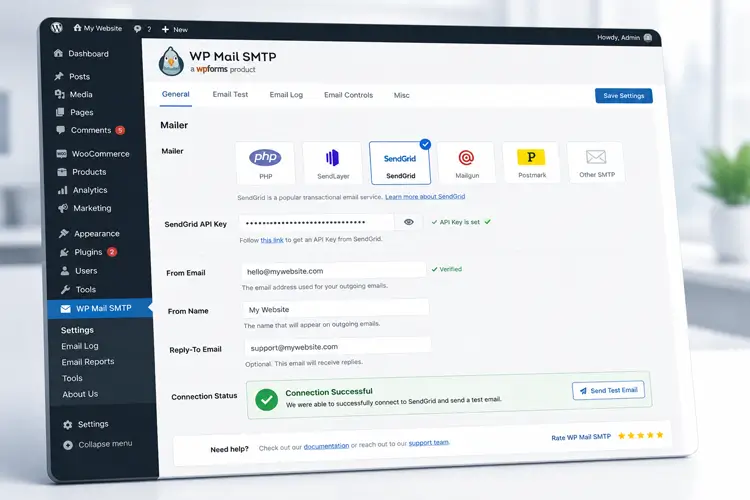
Step 1: Choose and Install an SMTP or Mailer Plugin
From your WordPress dashboard:
- Go to Plugins > Add New.
- Search for a WordPress mailer plugin.
- Install and activate your preferred option.
Common options include WP Mail SMTP, FluentSMTP, and Post SMTP.
Choose the plugin based on the email provider you use, available authentication methods, logging requirements, and the features you actually need.
Security Note: If your mail provider offers a dedicated API or OAuth integration, consider using it instead of storing standard mailbox credentials in WordPress through a generic “Other SMTP” connection.
Step 2: Configure Your Mail Provider
Open your mailer plugin’s settings and select the provider you want to use.
Depending on the service, you may need:
- an API key
- SMTP hostname
- SMTP username and password
- OAuth authorization
- port and encryption settings
- a verified sender email or domain
Make sure your From Email is authorized by the selected provider and follows its domain-verification requirements.
Step 3: Send a Test Email
After saving the configuration, use your mailer plugin’s test-email feature.
Send the message to an external address you control.
If the test fails, review the error or diagnostic information before changing settings. The error often points toward a specific problem such as invalid credentials, authentication failure, blocked ports, or incorrect encryption settings.
If the test succeeds but the message does not appear in your inbox, check:
- spam or junk folders
- provider activity or delivery logs
- SPF/DKIM configuration
- sender reputation
- sending limits
- recipient-side filtering
Where Support Genix Fits
If you use Support Genix, reliable WordPress email delivery is important because ticket events can generate email notifications for customers, admins, and support agents.
After configuring SMTP or another authenticated mailer, verify that your Support Genix email notifications are enabled and that the correct templates are active.
For SMTP-related WordPress email troubleshooting, see the Support Genix troubleshooting guide.
You can also review the Support Genix email notification and template settings to make sure the appropriate ticket emails are enabled and configured correctly.
Configure SPF, DKIM, and DMARC
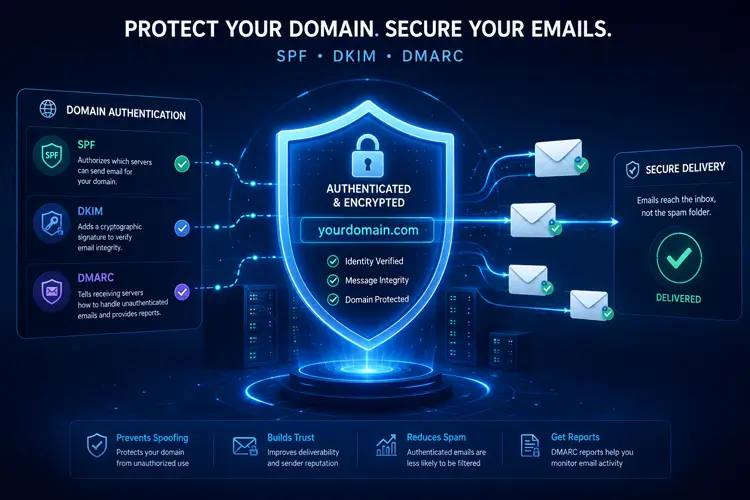
Setting up an SMTP plugin or email API is only one part of reliable email delivery. Domain authentication helps receiving providers verify who is authorized to send email on behalf of your domain.
1. SPF (Sender Policy Framework)
SPF identifies which servers or services are authorized to send email for your domain.
A domain should generally have one SPF policy. If you use several sending services, their authorized mechanisms should normally be combined into that policy instead of creating multiple competing SPF records.
Follow the SPF values supplied by your email provider rather than copying records from an unrelated tutorial.
2. DKIM (DomainKeys Identified Mail)
When DKIM is enabled by your sending provider, outgoing messages receive a cryptographic signature.
Receiving mail servers can use the corresponding public key published in your DNS to verify that the message was signed by an authorized sender and that relevant parts of the message were not changed after signing.
Your provider normally supplies the DNS records required to enable DKIM.
3. DMARC (Domain-based Message Authentication, Reporting, and Conformance)
DMARC builds on SPF and DKIM authentication and alignment.
It allows a domain owner to publish a policy explaining how participating receiving servers should handle messages that fail DMARC checks. DMARC can also provide aggregate reporting that helps you identify legitimate and unauthorized sending sources using your domain.
If you are new to DMARC, start by following your email provider’s recommended implementation process rather than immediately applying a strict rejection policy.
Common SMTP Errors and How to Fix Them
Authentication Failed
Possible causes:
- incorrect username or password
- expired API key
- revoked credentials
- required app password not configured
- incorrect account authorization
What to do: Recheck the credentials in your mail provider and WordPress mailer settings.
Connection Timeout or Port Blocked
Some hosts or network environments restrict outgoing SMTP connections.
Common SMTP submission ports include 465 and 587, but you should always use the port and encryption method recommended by your email provider.
What to do: Confirm your SMTP host, port, and encryption settings. If the connection still times out, ask your web host whether outbound SMTP connections are restricted.
TLS or Encryption Mismatch
A mailer can fail to connect when the selected encryption method does not match the provider’s required port or connection settings.
What to do: Follow the exact TLS/SSL configuration provided by your email service.
Sender Mismatch or Alignment Problem
Problems can occur when a WordPress plugin tries to send using an address that your mail provider has not authorized.
A common example is using a website visitor’s email address directly as the From address in a contact form.
What to do: Use an authenticated address from your own domain as the From address and use the visitor’s address as Reply-To when appropriate.
Sending Quota or Rate Limit Reached
Email providers impose account-specific sending limits.
If you exceed those limits, new messages may be delayed or rejected temporarily.
What to do: Check the provider dashboard or activity logs for quota or rate-limit errors and review your current plan limits.
Frequently Asked Questions
Q: Why are my WordPress contact form emails not sending?
A contact form email can fail because the form does not trigger correctly, WordPress cannot hand off the message, SMTP/API settings are incorrect, or the receiving provider rejects or filters the email. Start by checking your WordPress email logs, then test your authenticated mail configuration.
Q: Do all SMTP providers offer free tiers?
A: Not necessarily. Some providers offer free or developer-level allowances, while others mainly offer paid plans or limited trials. Check the provider’s current pricing and sending limits before choosing one.
Q: What is the best plugin to fix WordPress email issues?
A: There is no single best plugin for every WordPress site. WP Mail SMTP, FluentSMTP, and Post SMTP are common options. The right choice depends on your mail provider, authentication method, logging requirements, budget, and other features you need.
Q: Does setting up SMTP guarantee my emails will reach the inbox?
A: No. SMTP or an authenticated email API can improve sending reliability, but inbox placement also depends on authentication, sender reputation, message content, recipient behavior, and filtering by the receiving provider.
Q: How do I check if my WordPress site is generating emails?
A: Use a WordPress email logging solution to check whether your site triggered the message. If no mail event appears, investigate the plugin, WooCommerce action, form, or WordPress workflow responsible for generating the email before troubleshooting SMTP.
Do all SMTP providers offer free tiers?
A contact form email can fail because the form does not trigger correctly, WordPress cannot hand off the message, SMTP/API settings are incorrect, or the receiving provider rejects or filters the email. Start by checking your WordPress email logs, then test your authenticated mail configuration.
Why does my WordPress email show as sent but never arrive?
A successful sending attempt only indicates that the message was handed off without an immediate error. The email may still be rejected later, bounce, hit a rate limit, or be placed in spam or another filtered folder. Check your email provider’s delivery logs and domain authentication records
Conclusion
Fixing WordPress email problems starts with identifying where the message fails: generation → sending → delivery → inbox placement.
If WordPress generates the message but local mail delivery is unreliable, route outgoing email through an authenticated transactional provider using SMTP or a supported API. Then configure SPF, DKIM, and DMARC according to your provider’s instructions and test the entire workflow.
For Support Genix users, email delivery is only one part of the process. After confirming that WordPress can send email reliably, make sure your ticket notification templates are enabled and configured correctly.
If you use Support Genix, verify your email notification settings after SMTP is working correctly.