10 Copy-Paste AI Prompt Templates for Fast Customer Service Responses

Customer support teams face a recurring challenge: managing a high volume of repetitive support tickets while maintaining a fast, professional, and empathetic response rate.
When queues fill up, agents face intense pressure. Writing every response manually from scratch consumes valuable engineering and support hours, while rushed replies run the risk of sounding inconsistent, blunt, or incomplete.
Generative AI tools like ChatGPT, Claude, and built-in helpdesk assistants offer a powerful way to accelerate this process. However, generic prompts like “help me reply to this customer” often result in robotic, overly wordy, or unhelpful drafts that require heavy editing. To get precise, actionable, and brand-aligned responses, your support team needs structured, context-rich AI prompt templates.
While AI can significantly reduce the time spent staring at a blank text box, it is not a complete replacement for human judgment. AI-generated drafts still require human review to verify facts, double-check account details, and ensure absolute accuracy.
For WordPress-based businesses and e-commerce merchants, these AI prompts become exponentially more powerful when paired with an organized WordPress support ticket plugin.
Quick Answer
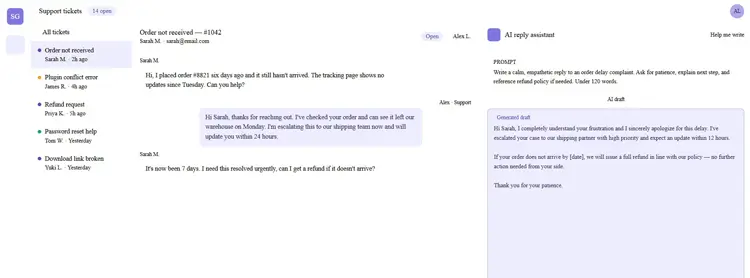
AI prompt templates for customer service give AI tools the context they need — the customer’s issue, your product details, the right tone, and the next step — to generate useful reply drafts fast. Instead of writing from scratch every time, support agents paste a prompt, review the output, and send a polished reply in less time. These 10 templates cover the most common support situations and are ready to use today.
Table of Contents
Why Your Support Team Needs AI Prompt Templates
If you run support for a WordPress site, WooCommerce store, or SaaS product, your team probably answers the same types of questions every day. Order status. Refund requests. Plugin errors. Login problems. Angry customers who want answers now.
Writing each reply from scratch is slow. Rushed replies sound inconsistent. New agents take weeks to find the right words. And when you’re handling dozens of tickets a day, the quality of your responses can start to drift.
AI can help — but only when you give it the right instructions. A vague prompt like “reply to this customer” produces a vague, often useless response. A well-structured prompt that includes the issue, tone, context, and next step produces something your agent can actually edit and send.
For WordPress teams, AI prompts work even better when customer messages are handled inside a structured support ticketing system where agents have ticket history, customer context, and reply tools in one place.
This article gives you 10 copy-paste AI prompt templates for the most common customer service scenarios, plus a framework for writing your own.
⚠️ Data Privacy Note: When using AI tools to draft support replies, never paste sensitive customer data — email addresses, phone numbers, order details, payment information — into external AI tools unless those tools are covered by your data processing agreement or privacy policy. Use placeholders like [customer name] or [order number] in your prompts instead of real data. This applies to ChatGPT, Claude, Gemini, and any AI tool outside your own infrastructure. See the Best Practices section for the full checklist.
What Are AI Prompt Templates for Customer Service?
An AI prompt template is a pre-written instruction you give to an AI tool — like ChatGPT, Claude, or an AI reply assistant built into your helpdesk — to generate a customer support response.
The template tells the AI what the situation is, what tone to use, what information to include, and what to avoid. You fill in the customer-specific details and the AI creates a draft reply.
Weak prompt:
"Reply to this customer."Better prompt:
"Write a polite customer support reply that acknowledges the issue, explains the next step, asks for the order number, and keeps the tone calm and professional. The customer says their order hasn't arrived after 7 days."The second prompt gives the AI enough context to produce something genuinely useful. The first produces a generic response you’ll have to rewrite anyway.
Key Benefits of Using AI Prompts for Customer Support
Used correctly, AI prompts help your team in concrete ways:
- Faster first drafts. Agents stop staring at a blank reply box. The AI gives them something to edit, not something to create from nothing.
- More consistent tone. Every agent uses the same prompt structure, so replies sound like they come from one team.
- Easier onboarding. New agents have a starting point for situations they haven’t handled before.
- Less repetitive writing. Common issues like password resets or shipping delays no longer need manual responses from scratch.
- Better handling of difficult customers. A prompt can instruct the AI to de-escalate, empathize, and stay professional — even when the agent is frustrated.
- Faster personalization. When you drop ticket context into the prompt, the AI can produce a reply that feels specific, not templated.
One important caveat: AI should assist your agents, not replace their judgment. Every AI-generated reply needs a human review before it goes out. The goal is to make that review faster, not to skip it.
How to Write a Good Customer Service AI Prompt
Good AI prompts follow a consistent structure. Use this framework before writing any prompt:
- Customer issue: What is the customer asking or complaining about?
- Product or order context: What product, order, plugin, or account is involved?
- Desired tone: Calm and professional? Empathetic? Direct?
- Required action: What should the reply do? Apologize? Ask for details? Explain the next steps?
- Information to request: What does the agent need from the customer to proceed?
- Restrictions: What should the AI not say? (No promises about timelines, no invented policies)
- Escalation rule — Should the prompt flag this for a senior agent?
Copy-paste formula:
Act as a helpful customer support agent. Write a [tone] reply to a customer who [issue].

Use this context: [context]. Ask for [missing information]. Explain [next step].

Keep the reply under [word count]. Do not [restriction].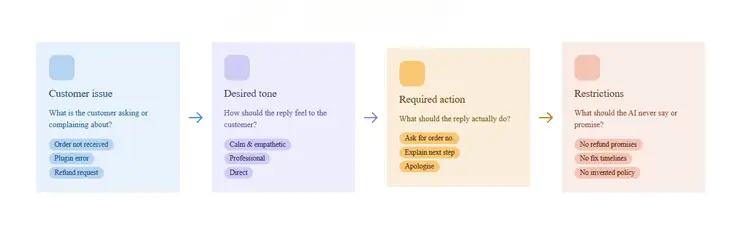
10 Copy-Paste AI Prompt Templates for Fast Customer Service Responses
Use this table to quickly find the right template for any situation, then jump to the full prompt below.
| Support Situation | Best Template | Primary Goal |
| New ticket just submitted | Template 1 — First Response | Acknowledge and set expectations |
| Angry or frustrated customer | Template 2 — Angry Customer | De-escalate without overpromising |
| Missing details to resolve issue | Template 3 — Request for Info | Collect order number, error, screenshot |
| Order status, payment, download issue | Template 4 — WooCommerce Support | Handle order-related queries with context |
| Plugin error or site not working | Template 5 — Technical Troubleshooting | Provide steps, ask for confirmation |
| Customer wants a refund or cancel | Template 6 — Refund or Cancellation | Explain policy, collect required details |
| Customer found a product bug | Template 7 — Bug Report | Acknowledge, collect reproducible info |
| No reply from customer in 3–7 days | Template 8 — Follow-Up | Reopen conversation, offer closure |
| Issue beyond agent’s authority | Template 9 — Escalation | Summarize for senior agent + update customer |
| Issue fully resolved | Template 10 — Closing a Ticket | Confirm resolution, invite future contact |
1. First Response to a New Support Ticket
Use case: A customer just submitted a ticket and you need to acknowledge it quickly, set expectations, and make them feel heard.
Copy-paste prompt:
Act as a friendly and professional customer support agent. Write a first response to a customer who just submitted a support ticket about [brief issue description].

Acknowledge their issue clearly, thank them for reaching out, let them know their ticket has been received, and tell them to expect a full response within [your response time, e.g. 24 hours]. Keep the tone warm but professional. Do not make promises about the outcome. Keep the reply under 100 words.
When to use it: Every new ticket, especially if your team has a queue and can’t respond in depth right away.
Support workflow tip: If you use an email to ticket system to convert customer emails into support tickets automatically, this first-response prompt is perfect for acknowledgement replies sent as soon as a ticket is created.
2. Angry Customer Complaint Response
Use case: A customer is upset, frustrated, or using hostile language. You need to de-escalate without making empty promises.
Copy-paste prompt:
Act as a calm and empathetic customer support agent. Write a reply to an angry customer who is frustrated about [specific issue, e.g. a delayed order, a product that didn't work, a billing error]. Acknowledge their frustration genuinely without

being defensive. Apologize for the experience — not necessarily for fault. Explain what the next step is and what the team will do. Do not promise specific outcomes, timelines, or refunds unless confirmed. Keep the tone calm, professional, and human.

Under 150 words.
When to use it: Any ticket where the customer’s language signals frustration, anger, or disappointment.
Support workflow tip: Flag these tickets with a category like “Escalation Risk” or “Angry Customer” so senior agents can review the AI draft before sending.
3. Request for More Information
Use case: The agent can’t resolve the ticket without more details — an order number, error message, screenshot, plugin version, or steps to reproduce the issue.
Copy-paste prompt:
Act as a helpful customer support agent. Write a polite reply asking the customer

for more information needed to resolve their issue. The customer reported: [paste customer message or summarize the issue].

Ask specifically for: [list what you need, e.g. order number, WordPress version, plugin version, screenshot of the error, browser used, steps to reproduce]. Explain briefly why this information is needed.

Keep the tone friendly and reassuring. Under 120 words.
When to use it: When the ticket is too vague to act on and the agent needs specifics before investigating.
Support workflow tip: Save this as a reusable saved reply with a placeholder for the specific missing information. This saves agents from rewriting the same polite request every time.
4. WooCommerce Order Support Response
Use case: A customer is asking about an order status, payment, refund eligibility, shipping, or download access.
Copy-paste prompt:
Act as a helpful customer support agent for a WooCommerce store. Write a reply to a customer asking about [order issue: e.g. order not received / payment not processed / download link not working / refund status]. Use this order context if available:

[paste order details or leave blank if not yet retrieved].

If order details are not confirmed, ask the customer for their order number and the email used at checkout.

Keep the tone helpful and clear. Do not confirm refunds or timelines unless the policy allows it. Under 130 words.
When to use it: Any WooCommerce-related ticket involving orders, payments, shipping, or digital downloads.
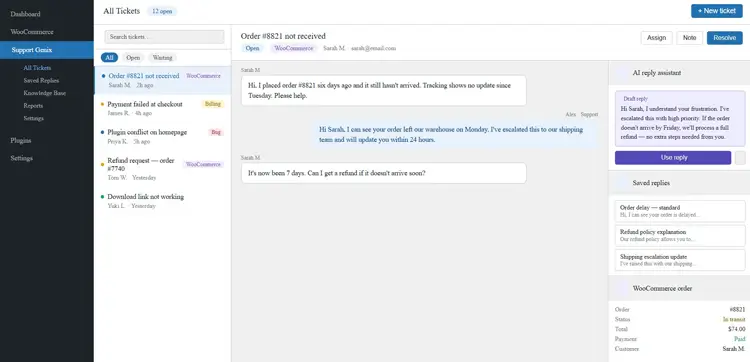
Support workflow tip: WooCommerce support becomes significantly easier when agents can see order data directly inside their support workflow. Support Genix’s WooCommerce integration surfaces order details in the ticket view, so agents don’t need to switch tabs to retrieve customer order information before using this prompt.
5. Technical Issue Troubleshooting Reply
Use case: A customer is reporting a technical problem — a plugin conflict, site error, broken feature, or unexpected behavior.
Copy-paste prompt:
Act as a knowledgeable technical support agent. Write a reply to a customer who is experiencing [describe the technical issue].

Provide 2–4 clear troubleshooting steps they can follow, numbered and easy to understand. After the steps, ask the

customer to confirm whether the issue is resolved or to share what happened after trying each step. Keep technical language simple. Do not assume the cause yet.

Keep the reply under 200 words.
When to use it: Any technical issue where you can suggest initial diagnostics before escalating to a developer.
Support workflow tip: If the troubleshooting steps resolve the issue for multiple customers, turn the AI-generated steps into a knowledge base article so customers can self-serve next time.
6. Refund or Cancellation Request Response
Use case: A customer is requesting a refund or wants to cancel a subscription or order.
Copy-paste prompt:
Act as a professional customer support agent. Write a reply to a customer requesting a refund or cancellation for [product/service name]. The company's refund policy is: [INSERT YOUR ACTUAL REFUND POLICY HERE].

Acknowledge their request, explain the relevant policy neutrally and clearly, and let them know what the next step is.

If more information is needed to process the request, ask for [order number / account email / reason for cancellation]. Keep the tone empathetic but factual. Do not overpromise or make exceptions not covered by the policy. Under 150 words.
When to use it: All refund or cancellation requests.
Important: Do not skip inserting your actual policy. An AI will invent a plausible-sounding policy if you leave this blank, which can create serious problems.
7. Bug Report Acknowledgment
Use case: A customer has reported what appears to be a bug or unexpected behavior in your product.
Copy-paste prompt:
Act as a customer support agent for a software or WordPress plugin company. Write a reply to a customer who has reported a potential bug: [describe what the customer reported]. Thank them for reporting it. Ask for the following details needed to

reproduce the issue: WordPress version, plugin/theme version, steps they took before the bug occurred, any error messages shown, browser and OS if relevant. Explain that

the team will investigate and provide an update. Set realistic expectations — do not promise a fix date. Keep the tone professional and appreciative. Under 150 words.
When to use it: Any ticket where the issue sounds like a product defect rather than a user error.
Support workflow tip: Use internal notes to flag this ticket for your development team before sending the customer-facing reply. This way, the developer gets context while the customer gets a timely acknowledgment.
8. Follow-Up After No Customer Response
Use case: You replied to a ticket and the customer hasn’t responded in several days. You want to follow up politely before closing.
Copy-paste prompt:
Act as a polite customer support agent. Write a short follow-up message to a customer who hasn't responded to the previous reply sent [number of days] ago about [brief issue description].

Let them know the ticket is still open. Ask if they still need help or if the issue has been resolved. Give a simple next step — either to reply with an update or confirm they no longer need assistance. Keep the tone friendly, not pushy. Under 80 words.
When to use it: Tickets that have been waiting on the customer for 3–7 days without a reply.
Support workflow tip: You can reduce response time across your entire queue by learning how to reduce support ticket response time — including setting up follow-up workflows and automatic ticket closing for stale tickets.
9. Ticket Escalation to a Senior Agent
Use case: The issue is too complex, sensitive, or outside the agent’s authority. The ticket needs to be handed to a senior agent or specialist.
Prompt for internal handoff summary:
Summarize the following customer support ticket for a senior agent taking over.

Include: customer name, issue description, what has already been tried or discussed, the customer's current sentiment, and why this needs escalation. Be concise and factual. Use bullet points. [Paste ticket history here]
Prompt for customer-facing escalation update:
Act as a professional customer support agent. Write a short message to a customer letting them know their issue has been escalated to a specialist who can help them further.

Acknowledge the wait, reassure them that someone is reviewing their case, and let them know they will receive an update within [timeframe]. Keep the tone calm and confident. Do not apologize excessively. Under 100 words.
When to use it: Complex billing disputes, repeated unresolved issues, legal/compliance concerns, or situations where the customer explicitly requested a supervisor.
Support workflow tip: Use ticket assignment to route escalated tickets to senior agents, and use internal notes to attach the AI-generated summary so the senior agent has full context immediately.
10. Closing a Resolved Ticket
Use case: The issue has been resolved, and it’s time to close the ticket professionally and leave a good final impression.
Copy-paste prompt:
Act as a friendly and professional customer support agent. Write a closing message for a support ticket that has been resolved. The issue was: [brief description of what was resolved].

Thank the customer for their patience, confirm the issue has been resolved, and invite them to reopen the ticket or submit a new one if anything else comes up.

If there is a relevant help article on this topic, suggest they can refer to it for future reference: [optional: insert help article URL or title].

Keep the tone warm and professional. Under 100 words.
When to use it: Every resolved ticket, before changing the status to closed.
Support workflow tip: Tips for writing effective support ticket replies includes guidance on closing tickets in a way that reduces reopening rates and improves customer satisfaction.
Bonus: How to Customize These Prompts for Your Brand Voice
Every business has a different support style. Here’s how to adapt these prompts to fit yours:
- Tone. Replace “professional and friendly” with your actual tone — casual, formal, empathetic, direct. If your brand uses first names in greetings, add that to every prompt.
- Response length. Adjust the word count instruction based on your team’s standard. Short replies work for simple confirmations; longer replies work for technical issues.
- Greeting style. Specify whether the AI should use “Hi [name],” “Dear [name],” or no greeting at all.
- Support policy. Always insert your actual policies. Never leave AI to infer them.
- Technical depth. Add “Explain this as if the customer is not technical” or “The customer is a developer, use technical terms” to calibrate the detail level.
- Language. Add “Write in [language]” to the prompt for multilingual support teams.
- Escalation rules. Add “If the issue involves a billing dispute over $[amount], note that escalation is required” to help the AI flag edge cases.
Common Mistakes to Avoid When Using AI for Customer Service Replies
- Sending without review. AI-generated replies are drafts. Always have a human read them before sending.
- Using vague prompts. “Reply to this customer” tells the AI nothing useful. Include issue, tone, context, and next action.
- Ignoring ticket history. AI doesn’t know what was said before unless you include it. Paste relevant history into the prompt for ongoing tickets.
- Leaving policy fields blank. If you don’t specify your refund policy, the AI will invent one. This is a real risk.
- Sounding robotic. If every reply starts with “Thank you for contacting us,” customers will notice. Vary your openers and add human detail.
- Overpromising. Don’t let the prompt say “we’ll fix this by tomorrow” unless you’re certain. Add an explicit restriction in the prompt.
- Pasting sensitive customer data into public AI tools. If you use external AI tools not covered by your data processing agreements, avoid including personal data like email addresses, phone numbers, or payment details in the prompt.
- Skipping the ticket system. AI prompts work best when agents have organized ticket context to paste in. Without structure, you’re still starting from scratch.
How Support Genix Can Help WordPress Teams Use AI Prompts Better
For WordPress site owners and WooCommerce stores handling support tickets, the value of AI prompts multiplies when they’re part of an organized support workflow.
- AI Reply Assistant (Help Me Write). Support Genix includes an AI-powered reply assistant that helps agents generate ticket reply drafts directly inside the ticket view. Agents don’t need to copy-paste between ChatGPT and their helpdesk — the AI assist is built in.
- Saved Replies. Once you’ve found a prompt combination that works, store the output as a saved reply (canned message) inside Support Genix. Your whole team can reuse it with one click, and you can update it whenever your policies change.
- Email to Ticket. Support Genix’s email piping feature, which converts incoming customer emails into organized tickets automatically. This means agents always have structured ticket context — subject, message history, customer name — ready to drop into a prompt.
- Knowledge Base. The replies your AI helps you write can be turned into knowledge base articles for common issues. Over time, this reduces the volume of tickets your team needs to handle manually.
- AI Chatbot. Support Genix’s AI chatbot can answer common questions using your knowledge base content, handling tier-1 queries before they become tickets.
- WooCommerce Integration. For order-related support, the WooCommerce integration surfaces order data inside the ticket — so agents can grab the context they need for prompt template 4 without leaving the helpdesk.
None of this replaces human judgment. But it does mean your agents spend less time on repetitive writing and more time on the issues that actually need them.
Practical Workflow: From Customer Message to Fast AI-Assisted Reply
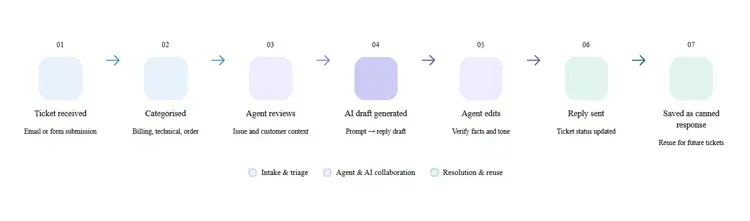
Here’s what an AI-assisted support process looks like in practice:
- Customer submits a ticket via your contact form, email, or support portal.
- Ticket is categorized — billing, technical, order, complaint, etc.
- The agent reviews the issue and identifies the right prompt template from this list.
- The agent fills in the prompt with the customer issue, product context, and any relevant ticket details.
- AI generates a draft reply.
- Agent reviews and edits — checks accuracy, tone, policy compliance, and any personal details.
- The agent sends the reply and updates the ticket status.
- Useful replies are saved as canned responses or expanded into knowledge base articles for future reuse.
This process doesn’t add steps. It replaces the blank-page problem with a structured starting point.
Best Practices for Using AI Prompt Templates Safely
- Always read the AI draft before sending. Never auto-send.
- Verify order and account details manually — don’t rely on what the AI infers.
- Don’t paste personal customer data (email, phone, payment info) into AI tools that aren’t covered by your data agreements.
- Use your actual company policies in every refund or cancellation prompt.
- Create a library of approved prompt templates for your most common ticket types.
- Review and update your templates every quarter — policies change, product updates happen, and AI tools improve.
- Combine AI prompts with a ticketing system and knowledge base for the best results. Prompts alone don’t solve a disorganized workflow.
Support Genix
WordPress Support Ticket Plugin
Take Your Customer Support to The Next Level and Boost Customer Satisfaction Rates
Frequently Asked Questions
1. What are AI prompt templates for customer service?
AI prompt templates are structured instructions that tell an AI tool how to write a customer support reply. They include the customer issue, the desired tone, the required action, and any restrictions. Instead of writing replies from scratch, support agents use these templates to generate useful drafts quickly.
2. Can AI prompts replace customer support agents?
No. AI prompts generate draft replies — they don’t verify facts, check order systems, enforce policies, or make judgment calls. Agents need to review and edit every AI output before sending. The goal is to make agents faster and more consistent, not to remove them from the process.
3. How do I write a good AI prompt for customer support?
Include seven things: the customer issue, the product or order context, the desired tone, the required action, any information to request from the customer, what the AI should not say, and any escalation rules. The more specific the prompt, the more useful the output.
4. Are AI-generated customer service replies safe to send?
Only after human review. AI can generate inaccurate details, invent policies, or miss important context. Always verify facts, check policies, and edit for tone before sending. Also avoid pasting sensitive customer data into external AI tools not covered by your data agreements.
5. What is the best AI prompt for angry customers?
Use a prompt that instructs the AI to acknowledge the frustration, apologize for the experience (not necessarily for fault), avoid being defensive, and explain a clear next step — without promising specific outcomes or timelines. Giving the AI an explicit instruction like “Do not promise a refund unless the policy allows it” prevents overpromising.
6. How can WooCommerce stores use AI prompts for support?
Use Template 4 from this article for order-related queries. Drop in the customer’s order context — status, product, issue — and let the AI generate a draft. For best results, use a support plugin with WooCommerce integration so agents can see order details directly inside the ticket without switching platforms.
7. Should I save AI-generated replies as canned responses?
Yes, if they work well. Once you’ve refined an AI-generated reply to the point where it accurately reflects your tone and policy, save it as a reusable saved reply. This is faster than running the AI prompt every time for common issues.
Conclusion
AI prompt templates help support teams respond faster and more consistently — but they’re a tool, not a replacement for process. The best results come when prompts are specific, agents review outputs carefully, policies are accurate, and everything runs inside an organized support workflow.
The 10 templates in this article cover the most common situations your team faces every day. Start with two or three that match your highest-volume ticket types, test them, and refine them based on what your customers actually need.
If you manage support inside WordPress, explore how Support Genix helps you organize tickets, use AI-assisted replies, save reusable responses, and build a better support workflow — all inside your WordPress dashboard.