WhatsApp Customer Support on WordPress: Full Guide

Quick Answer
WhatsApp customer support on WordPress lets you turn WhatsApp conversations into trackable support tickets. With Support Genix, you can connect WhatsApp through Twilio, receive ticket notifications, and let support agents reply directly from WhatsApp or manage tickets through WordPress.
If your customers already message you on WhatsApp, the real challenge isn’t getting the messages — it’s keeping them organized once they arrive.
WhatsApp customer support on WordPress means connecting a WhatsApp Business number to your site so incoming chats become trackable tickets, and agents can reply from WhatsApp or your dashboard without losing context.
This guide covers why WhatsApp matters for support teams, how the setup works step by step, and how to connect it using Support Genix.
Table of Contents
Why Use WhatsApp for WordPress Customer Support?
Customers increasingly expect to reach businesses through the same apps they already use daily, and WhatsApp is one of the most common choices worldwide. Messaging a business on WhatsApp removes the friction of opening a separate support portal, creating an account, or waiting on hold — the customer simply continues a conversation in an app already installed on their phone.
For a support team, the real value isn’t the channel itself but what happens after the message arrives. Without a system behind it, WhatsApp support means messages piling up in one person’s personal chat with no handoff, no history, and no accountability.
Connecting WhatsApp to a WordPress help desk changes that by:
- Converting each conversation into a ticket that can be tracked, assigned, and reported on.
- Notifying the right agent automatically instead of relying on someone checking a phone.
- Keeping a record of the conversation tied to a customer and order, not just a chat thread.
- Allowing multiple agents to share responsibility for WhatsApp inquiries instead of one inbox owner.
This is the structural gap that separates a simple WhatsApp chat button from a genuine WhatsApp customer support system.
WhatsApp Chat Button vs. WhatsApp Customer Support System
These two approaches solve different problems, and confusing them is a common setup mistake.
| Approach | What It Does | Limitation |
|---|---|---|
| WhatsApp chat button | Sends the visitor into a WhatsApp conversation with your number | No ticket tracking, no agent assignment, no history |
| WhatsApp customer support system | Connects WhatsApp messages to a ticketing workflow with agents and routing | Requires setup through a provider like Twilio and a help desk plugin |
A chat button is fine for a single-owner site that just wants a contact option. A support team that needs accountability, routing, and reporting needs the ticket-based approach described in this guide.
What You Need Before You Start
Before connecting WhatsApp to your WordPress site, confirm you have:
- A WordPress site with admin access and Support Genix Pro activated.
- A Twilio account.
- Access to Support Genix’s WhatsApp settings under Integrations.
- A WhatsApp-enabled phone for testing the Sandbox and for each support agent.
Support Genix uses Twilio as the messaging bridge for its WhatsApp integration. Twilio connects the WhatsApp Business Platform with Support Genix so incoming messages and ticket replies can move between WhatsApp and your WordPress help desk.
Twilio is the provider this specific workflow relies on — Meta's WhatsApp Business Platform can also be accessed directly or through other approved partners, so Twilio is a implementation choice here, not a universal requirement.How to Set Up WhatsApp Customer Support on WordPress
Step 1: Choose Your Integration Method
Decide whether you need a simple chat button or a full ticket-based system. This guide follows the ticket-based path using Support Genix, since it’s the approach that scales past a single agent.
Step 2: Create Your Twilio Account
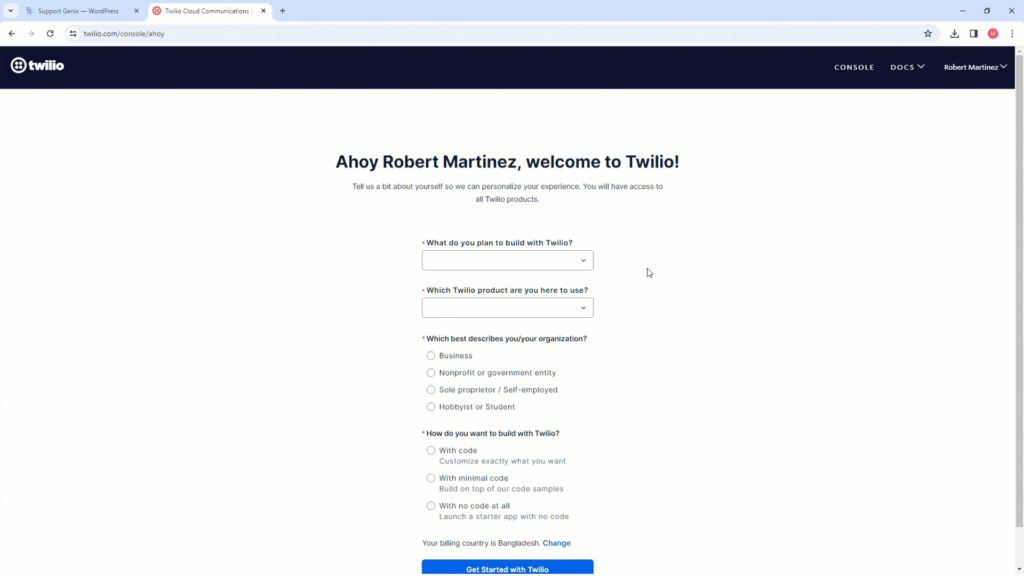
- Go to Twilio and sign up for an account.
- Verify your email address and mobile number.
- Once registered, open the Twilio Console.
Step 3: Set Up the WhatsApp Sandbox
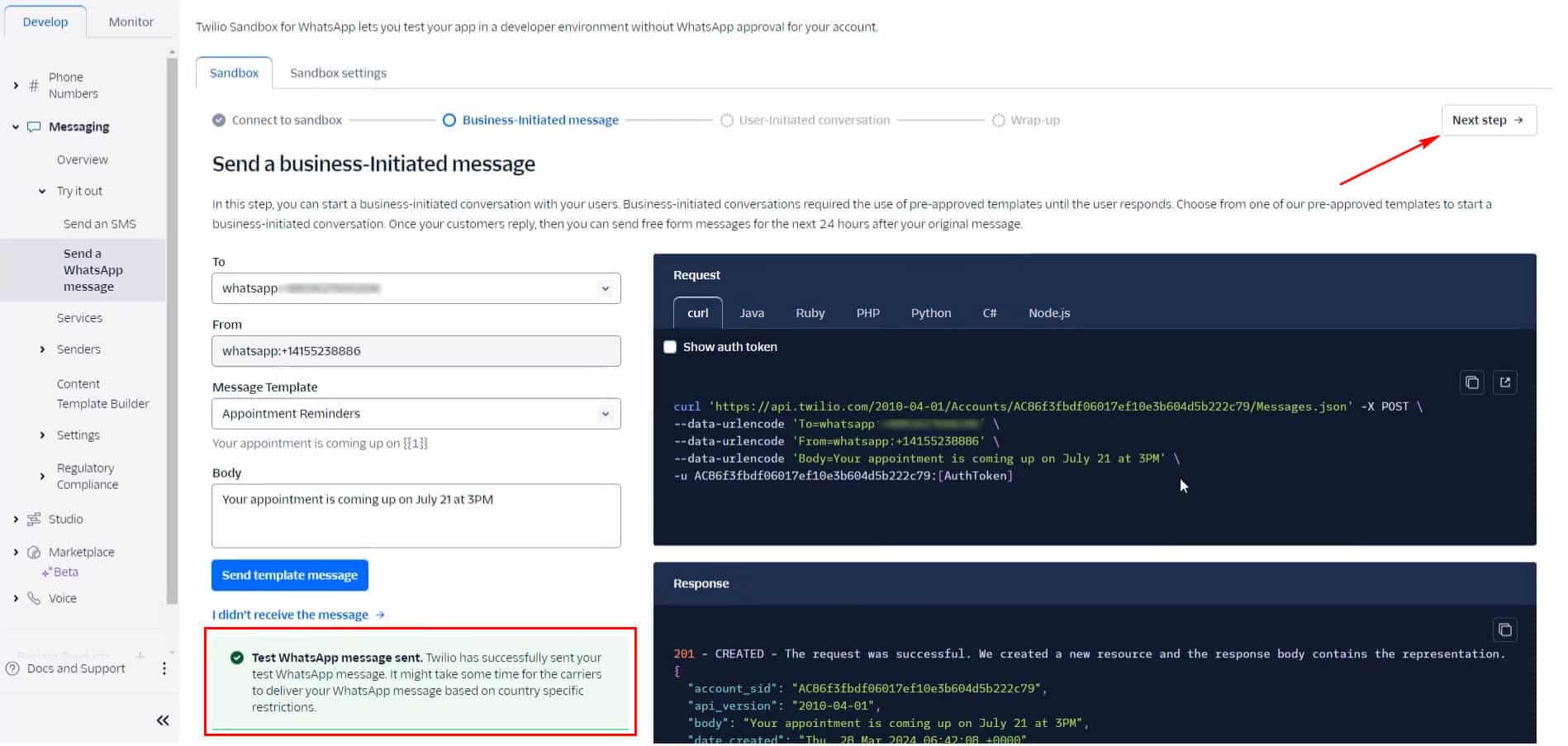
- In the Twilio Console, go to Messaging > Try It Out > Send a WhatsApp Message.
- Twilio provides a Sandbox WhatsApp number and a join code.
- Save the Sandbox number as a contact and send the join code from your WhatsApp account to link it.
- From the Business-Initiated Message page, send yourself a pre-approved template (e.g., “Appointment Reminders”) and reply to it to start a user-initiated conversation.
- Complete the remaining Sandbox setup steps in the console.
Twilio’s own documentation is explicit that the Sandbox is for testing and discovery only and should not be used as your production support channel — it doesn’t require a registered WhatsApp Business Account, but it isn’t meant to carry real customer traffic.
Step 4: Connect Support Genix to Twilio
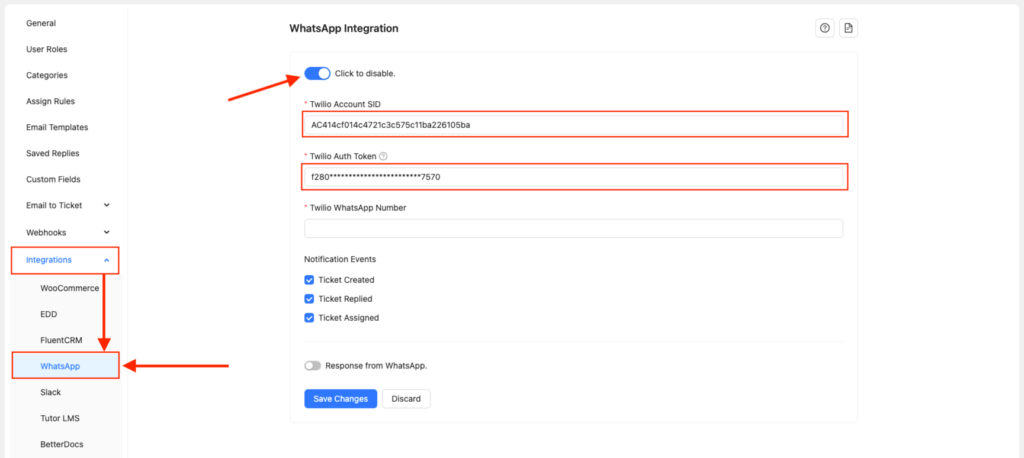
- Copy your Twilio Account SID and Auth Token from the console.
- Paste them into Support Genix > Settings > Integrations > WhatsApp.
- Enter the Sandbox’s WhatsApp Participant Number into the “Twilio WhatsApp Number” field and enable “Enable Response from WhatsApp.”
- Copy the generated webhook URL and paste it into Twilio’s Sandbox settings under “When a Message Comes In,” then save.
Step 5: Add Support Agents
- Share the Twilio WhatsApp number and Sandbox code with each agent.
- Have agents join the Sandbox by sending the code from their own WhatsApp accounts.
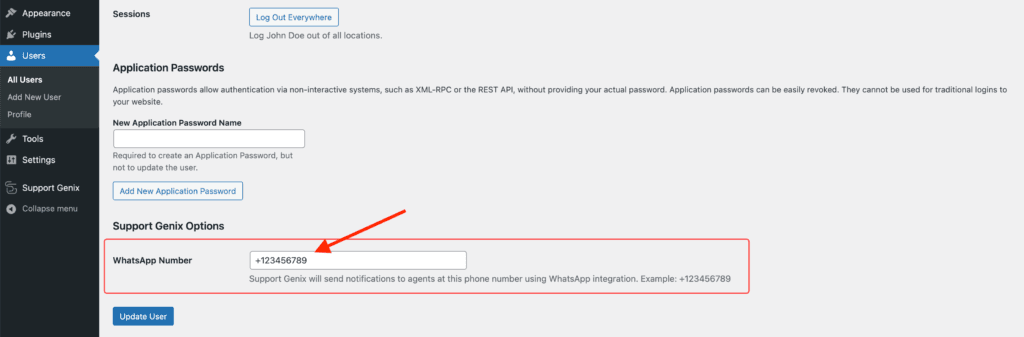
- Add each agent’s WhatsApp number to their profile inside Support Genix so ticket notifications route correctly.
Step 6: Test the Integration
Before rolling this out to real customers, confirm the full loop works:
- Send a test WhatsApp message to your Sandbox number.
- Confirm a ticket appears inside Support Genix.
- Confirm the assigned agent receives a WhatsApp notification.
- Reply using the
##ticket_id##format (e.g.,##3##) from the agent’s WhatsApp. - Verify the customer receives that reply back in WhatsApp.
Only move to a production WhatsApp Business number once every step in this chain works reliably.
How the WhatsApp Support Workflow Works
Once connected, a message moves through the system like this:
- Customer sends a WhatsApp message.
- Twilio receives the message and forwards it via webhook.
- Support Genix creates or routes the message as a support ticket.
- The assigned agent receives a ticket notification.
- The agent replies through WhatsApp (using the ticket ID format) or directly inside Support Genix.
- The customer receives the response back in WhatsApp.
This architecture is what separates a tracked support workflow from an unmanaged chat inbox.
What Happens After You Connect Support Genix?
Once WhatsApp is linked, Support Genix handles the ongoing ticket lifecycle:
| Capability | What It Does |
|---|---|
| Instant notifications | Agents receive WhatsApp notifications for new tickets, replies, and assignments. |
| Reply from WhatsApp | Agents can reply using the ##ticket_id## format directly from their phone, without logging into WordPress. |
| After-hours handling | Incoming messages outside business hours are still converted into tickets and queued for the next available agent. |
| Multi-agent routing | Each agent’s WhatsApp number is linked to their Support Genix profile for correct ticket assignment. |
| Centralized history | Ticket activity, including WhatsApp replies, stays visible inside the support dashboard rather than a personal chat. |
Example workflow: A WooCommerce store gets a WhatsApp message about a delayed order. Support Genix automatically creates a ticket, notifies the assigned agent via WhatsApp, and the agent replies with ##42## Your order ships tomorrow directly from their phone. The customer sees a normal, fast WhatsApp reply, while the interaction stays logged as a ticket on the backend.
According to Support Genix, its WhatsApp integration uses encrypted messaging and is designed for GDPR-compliant data handling. That claim reflects the vendor’s own documentation rather than independent verification, so treat it as a starting point for evaluation rather than a guarantee.
For the full field-by-field walkthrough, see the WhatsApp integration documentation.
WhatsApp Support vs. Other WordPress WhatsApp Methods
| Method | Ticket Tracking | Multiple Agents | Best For |
|---|---|---|---|
| WhatsApp chat button | No | Limited | A simple contact option |
| WhatsApp notification plugin | Usually no | Depends on the tool | Order or shipping status updates |
| WhatsApp + WordPress help desk (e.g., Support Genix) | Yes | Yes | Support teams needing tracked, assignable conversations |
| Dedicated omnichannel support platform | Yes | Yes | Larger, multi-channel support operations |
Support Genix
WordPress Support Ticket Plugin
Take Your Customer Support to The Next Level and Boost Customer Satisfaction Rates
Common WhatsApp Support Setup Mistakes
- Skipping the test step. Test the complete flow before sending customers to your WhatsApp number. Confirm incoming messages reach Support Genix, ticket notifications reach the right agent, and replies return to the correct conversation.
- Not linking agent numbers. Without adding each agent’s WhatsApp number to their Support Genix profile, replies won’t route correctly, and notifications may not reach the intended person.
- Ignoring WhatsApp’s 24-hour customer service window. After a customer messages your business, you can send free-form replies for 24 hours from their most recent message. Outside that window, outbound communication generally requires an approved WhatsApp template.
- Treating the Sandbox as production. Twilio’s Sandbox is meant for testing only; it isn’t built to carry live customer support traffic at scale.
- Treating WhatsApp as a standalone channel. Without ticket tracking, conversations get lost the moment an agent is unavailable or leaves the team.
Frequently Asked Questions
Does WhatsApp customer support work without a WordPress plugin?
A ticketing or help desk integration is needed if you want WhatsApp conversations organized as support tickets. Support Genix provides this workflow directly inside WordPress.
Do I need the WhatsApp Business API or just the app?
A simple click-to-WhatsApp button can work with the regular WhatsApp or WhatsApp Business app. A help desk integration like the one described here uses the WhatsApp Business Platform through Twilio to connect messaging with ticket management.
How long does it take to set up WhatsApp Business for production?
Setup time varies depending on WhatsApp sender registration, Meta business verification requirements, and account configuration. You can use Twilio’s WhatsApp Sandbox to test the integration before your production sender is ready.
Can customers tell they’re talking to a support system instead of a person?
No. Customers see your business name and continue chatting normally; the system organizes conversations on the backend without changing what the customer sees.
What happens to WhatsApp messages sent outside business hours?
They’re still converted into tickets and queued for the next available agent, so nothing gets lost overnight.
Is WhatsApp customer data secure when integrated with a WordPress plugin?
According to Support Genix, its WhatsApp integration uses encrypted messaging and is designed for GDPR-compliant data handling.
Can more than one agent respond through the same WhatsApp integration?
Yes. Each agent joins the Sandbox (or production line) and links their own WhatsApp number to their profile, so tickets route and notify correctly per agent.
Conclusion
WhatsApp customer support on WordPress works best when it’s treated as a full ticketing channel rather than a chat button. Setting up Twilio, testing the Sandbox thoroughly, connecting Support Genix, and mapping agents correctly turns WhatsApp into an organized, trackable support workflow instead of scattered personal chats.
Ready to bring WhatsApp into your support workflow? Explore the Support Genix WhatsApp integration and try it on your site today.