WooCommerce Order Support: Resolve Tickets with Order Context

A customer says, “My package still hasn’t arrived.” Your agent asks for the order number, waits for a reply, searches the store, checks the shipment, and then returns to the ticket. The customer waits while your team repeats work that a connected support system could handle more efficiently.
WooCommerce order support closes this context gap. It connects a support request with the relevant order so your agents can review useful purchase details while handling the conversation. Instead of beginning with basic information gathering, they can start by diagnosing the shipping, billing, refund, or product issue.
Quick Answer: WooCommerce order support connects a customer ticket with the relevant WooCommerce order so agents can see purchase details, order status, and customer history without switching between systems. This reduces unnecessary back-and-forth and helps teams resolve shipping, billing, refund, and product issues faster.
This connected experience also supports a broader customer-service goal. According to Salesforce customer service research, 88% of customers say good service makes them more likely to purchase again.
Giving agents relevant order context helps them provide faster, more informed assistance without making customers repeat information the store already holds.
Table of Contents
What Is WooCommerce Order Support?
WooCommerce order support is a ticketing workflow that links a customer’s request to a specific WooCommerce order and displays relevant purchase data to the support team.
It is more structured than a standard contact form. A form collects a message. An order-aware help desk creates a trackable case, identifies the responsible agent, keeps replies in one thread, and preserves the resolution history.
A practical system should help your team:
- Capture or select the relevant order during ticket creation.
- Confirm that the order belongs to the person requesting help.
- Display useful customer and purchase details in the agent view.
- Assign the request to the correct agent or department.
- Track ticket status, priority, replies, and internal notes.
- Preserve a record of the issue and its resolution.
- Identify recurring problems across products or order stages.
If you are still deciding whether email and contact forms are enough, this guide to using a WooCommerce help desk system explains when a structured ticketing workflow becomes useful.
Why Order Context Matters
Without order context, agents often spend the first part of a conversation collecting information that already exists in the store. The customer finds an order email, copies the order number, confirms the product, and waits for another response. The agent switches between the inbox, WooCommerce orders, payment records, and the ticket.
WooCommerce order support brings the relevant information into the support workflow. That creates three practical benefits:
- Lower customer effort: Customers do not need to repeat basic purchase details.
- Faster diagnosis: Agents can compare the customer’s message with the order status and purchased items.
- More consistent decisions: Everyone handling the case works from the same ticket and order record.
Order context does not replace agent judgment. It removes avoidable lookup work so agents can focus on the decision the customer actually needs.
What Should Agents See?
The best ticket view does not expose every piece of customer data. It displays enough information to understand and resolve the issue while limiting access to unrelated details.
For most stores, useful order context includes:
- Order ID and purchase date.
- Current order status.
- Purchased products, quantities, and variations.
- Customer name and verified email address.
- Relevant payment or fulfillment status.
- Recent order history when it helps explain the request.
- Store name when one team supports multiple stores.
- A direct route to the source order for authorized agents.
Apply role-based access and show only the fields required for the agent’s responsibilities. For better credential isolation, consider creating a dedicated user for an external integration and grant only the capabilities the connection needs.
WooCommerce API keys are associated with a user and can have Read, Write, or Read/Write access. Save the Consumer Key and Consumer Secret securely when you create them. You can verify the current key process in the official WooCommerce REST API documentation.
How WooCommerce Order Support Works
A reliable workflow takes the request from order selection to review without losing context between steps.
1. The Customer Selects the Order
The customer opens the support form from a customer portal or the WooCommerce My Account area. They then select or enter the order connected to the issue.
Make the order field required for post-purchase categories such as Shipping, Returns, Billing, Missing Items, or Damaged Products. Keep it optional for pre-sales, account, and general questions.
2. The System Verifies the Request
The system checks the order ID and customer identity before exposing purchase information. This helps prevent accidental mismatches and makes it harder for someone to use an unrelated order number.
You can also block selected order statuses from ticket creation when that rule matches your process. For example, your team may handle canceled or refunded orders through a different workflow.
3. The Ticket Receives Order Context
The help desk links the request to the order and displays relevant details to an authorized agent. The support ticket remains the working record for communication, ownership, and status. WooCommerce remains the source of truth for the order itself.
Avoid copying unnecessary personal data into ticket messages or internal notes. Agents should use the connected order view rather than duplicating sensitive details.
4. The Issue Is Routed
Use categories that reflect the work your team performs, such as Shipping, Returns, Billing, Product Problem, and Order Change. Assign each category to a clear owner or queue.
Do not mark every order problem as urgent. Define priority according to customer impact, business risk, and time sensitivity.
5. The Agent Resolves the Issue
Before replying, the agent reviews the message, order status, purchased items, and previous conversation. Internal notes can record warehouse checks, payment-team feedback, or manager approval without exposing those discussions to the customer.
The response should explain the verified status, the next action, and when the customer can expect another update. If the issue requires another team, the ticket should retain ownership until the handoff is accepted.
6. The Team Reviews the Outcome
After the ticket closes, review what caused the request and whether the process prevented unnecessary replies. Repeated shipping-status tickets may indicate unclear delivery communication. Repeated variation complaints may point to a product-page or fulfillment problem.
This review turns individual tickets into operational feedback rather than treating each request as an isolated conversation.
Support Genix
WordPress Support Ticket Plugin
Take Your Customer Support to The Next Level and Boost Customer Satisfaction Rates
Set Up WooCommerce Order Support with Support Genix
Support Genix provides two connection methods. You can run the help desk and WooCommerce on the same website or connect the help desk to a WooCommerce store on another site. The current integration requires Support Genix Pro.
Back up your site before changing integration settings. If possible, test the complete workflow in staging or with test orders. Follow the official Support Genix WooCommerce integration guide while configuring the connection.
Same-Site Setup
Use this method when Support Genix and WooCommerce run on the same installation.
- Go to Support Genix > Settings > Integrations > WooCommerce > Integrations.
- Select Add New.
- Choose WooCommerce in Same Site.
- Enter a recognizable store title.
- Configure the disallowed-order, customer-email, and SSL verification options.
- Select Create to save the integration.
- Confirm that the Order ID field appears on the ticket form.
Test the form with a valid order, an invalid order ID, a mismatched customer email, and any disallowed status you configured.
External-Store Setup
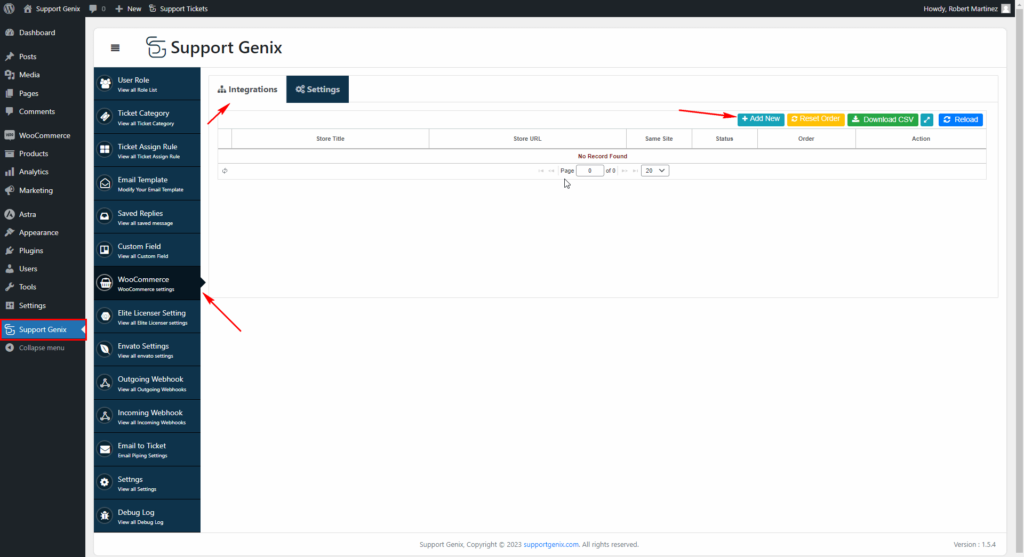
Use this method when the help desk and store run on different installations.
- Add a WooCommerce integration in Support Genix.
- Select WooCommerce in External Site.
- Enter the external store URL.
- In the store, go to WooCommerce > Settings > Advanced > REST API.
- Create the API credentials required by the connection.
- Add the Consumer Key and Consumer Secret to Support Genix.
- Configure email verification and disallowed-order settings.
- Test whether Support Genix can retrieve the expected order information.
If you enable event-based ticket creation, create an incoming webhook in Support Genix. Then add its delivery URL under WooCommerce > Settings > Advanced > Webhooks and select the required order event.
WooCommerce provides delivery logs for troubleshooting and automatically disables a webhook after more than five consecutive delivery failures.
Review the official WooCommerce webhooks documentation before enabling automatic order-event tickets on a live store.
Configure the Customer Form
After connecting the store, decide how customers will add order information to a request.
You can configure whether order information is required, whether the store and order ID appear on the form, whether to hide the store selector when there is only one integration, and whether to add a support menu to WooCommerce My Account.
Match the form to the customer’s task. If one portal supports several stores, show a clear store selector. If there is only one store, remove that unnecessary decision. Require order details for post-purchase issues but keep general support accessible.
Example: Resolve an Issue Without Extra Replies
A customer creates a ticket saying, “I received the blue shirt, but the medium shirt is missing.” They select order #18452 when submitting the request.
The agent opens the ticket and sees that the order contains both shirts and has a completed status. They add an internal note asking the fulfillment team to check the packing record. The customer receives an update without first being asked to provide information already connected to the ticket.
If the warehouse confirms a short shipment, the agent follows the store’s replacement policy and records the decision in the same conversation. The agent does not need to ask which order, which variation, or whether payment was completed.
That is the practical value of WooCommerce order support: less reconstruction, clearer ownership, and a complete record of the action taken.
Use Self-Service for Repetitive Questions
Not every order question needs an agent. Publish clear help articles for recurring topics such as delivery times, order tracking, return eligibility, refund timelines, failed payments, and address changes.
Support Genix can suggest relevant knowledge base articles while customers create tickets and can use approved documentation through its chatbot. Use self-service for general questions, but keep ticket submission available whenever a customer needs account-specific help, or the suggested article does not solve the problem.
For a broader implementation process, see how to set up a WordPress AI knowledge base without turning this order-support workflow into a separate chatbot project.
WooCommerce Order Support Launch Checklist
Before directing customers to the new workflow, confirm these essentials:
- Valid orders connect to the correct customer and store.
- Invalid or unauthorized order references fail safely.
- Agents can see only the order fields required for their roles.
- Categories route shipping, billing, return, and product issues correctly.
- Email notifications work for new tickets, replies, and closures.
- External API credentials use appropriate access and are stored securely.
- Webhook delivery and failure logs are monitored when automation is enabled.
Also test the customer experience on mobile. A technically correct integration still creates friction if buyers cannot find the support link or select an order from a smaller screen.
How to Measure Results
Do not judge the implementation by whether the integration activates successfully. Compare a baseline period with the first four to eight weeks after launch.
Track:
- First response time for order-related tickets.
- Average resolution time by issue category.
- Number of agent replies before resolution.
- Percentage of post-purchase tickets linked to a valid order.
- Reopened tickets and repeat contacts.
- Ticket volume by product, category, and order status.
Interpret the metrics together. A lower number of replies may show that agents need less information from customers, but only if resolution quality remains stable. A rise in one ticket category may reveal a checkout, product-content, delivery, or fulfillment problem outside the support team.
Support managers can use the Support Genix reporting dashboard to review ticket, response, closure, category, and agent activity.
When a Help Desk Fits
A native help desk is a strong fit when your team already manages the store in WordPress, wants order information and tickets in one administrative environment, and needs structured ownership beyond a shared inbox.
Before choosing a plugin, test the workflows that matter to your store:
- Can customers select the correct order easily?
- Can agents see enough context without accessing unrelated data?
- Does the system support same-site or external-store architecture?
- Can you control roles, categories, notifications, and escalation?
- Can managers measure ticket volume and team activity?
- Does the pricing model fit the expected number of agents and sites?
For current license options and included features, review Support Genix pricing. Test the integration with representative shipping, refund, billing, and product scenarios before rolling it out to the whole team.
Bring Order Context Into Every Ticket
Strong WooCommerce order support gives agents the information they need when they need it. It connects the request to the purchase, reduces avoidable questions, and creates a clear path from intake to resolution.
The goal is not to expose every order field. It is to provide the minimum useful context that helps an authorized agent make a faster, more consistent decision.
Support Genix combines ticket management with WooCommerce order context, customer verification, My Account access, same-site and external-store connections, and optional automatic ticket creation. Start with a controlled test, document the workflow for agents, and expand only after the team can handle common order issues reliably.
Ready to reduce order lookups and unnecessary replies? Try Support Genix and give your support team the order context they need inside each ticket.
Frequently Asked Questions
What is WooCommerce order support?
WooCommerce order support links a customer request with the relevant order so authorized agents can review useful purchase context while managing the ticket.
Can customers create tickets for specific WooCommerce orders?
Yes. A compatible help desk can add an order selector or order ID field to the support form. Support Genix can display the Order ID field and add a support menu to the WooCommerce My Account area.
What order details should support agents see?
Agents usually need the order ID, purchase date, order status, purchased products, quantities, variations, verified customer identity, and relevant payment or fulfillment status. Access should remain limited to the information required for the agent’s role.
Can Support Genix connect to an external WooCommerce store?
Yes. The external-store setup uses the store URL and WooCommerce REST API credentials. You can also use a webhook when you want selected order events to create tickets automatically.
How do you stop someone from using another customer’s order ID?
Verify the requester’s email against the order, validate order ownership, restrict unsuitable order statuses, protect API credentials, and limit order visibility to authorized support roles.
Can WooCommerce orders create tickets automatically?
Yes. Support Genix supports automatic ticket creation for same-site and external-store integrations. For an external store, WooCommerce can send the selected order event to an incoming Support Genix webhook.