
Voice Chat – AI-Powered Voice Support in Support Genix
Voice Chat in Support Genix allows customers to communicate with your AI chatbot using natural voice interactions. Instead of typing messages, users can speak directly and listen to AI-generated responses, creating a faster, more human-like support experience.
Powered by ElevenLabs, this feature transforms your helpdesk into a modern, voice-enabled support system.
What Is Voice Chat in Support Genix?
Voice Chat adds speech-to-text and text-to-speech capabilities to the Support Genix AI Chatbot. It enables customers to ask questions verbally and receive spoken responses instantly.
Voice Features Available
- Voice Agent – Real-time, voice-to-voice AI conversations
- Voice Input – Push-to-talk speech-to-text messaging
- Voice Playback – Read chatbot responses aloud
- Auto-play Responses – Automatically play new AI replies
These features help reduce typing friction, improve accessibility, and enhance customer engagement.
Requirements
Before enabling Voice Chat, make sure the following requirements are met:
- Support Genix Pro (Voice features are Pro-only)
- An active ElevenLabs account
- A valid ElevenLabs API Key
How to Set Up Voice Chat in Support Genix
Step 1: Get Your ElevenLabs API Key
- Sign up or log in at elevenlabs.io
- Scroll down and click the Developers menu from the bottom navigation
- From the Developers page, select the API Keys tab
Need more help?
For a detailed, step-by-step guide with screenshots, visit the dedicated documentation on how to get an ElevenLabs API key.
Step 2: Configure ElevenLabs in Support Genix
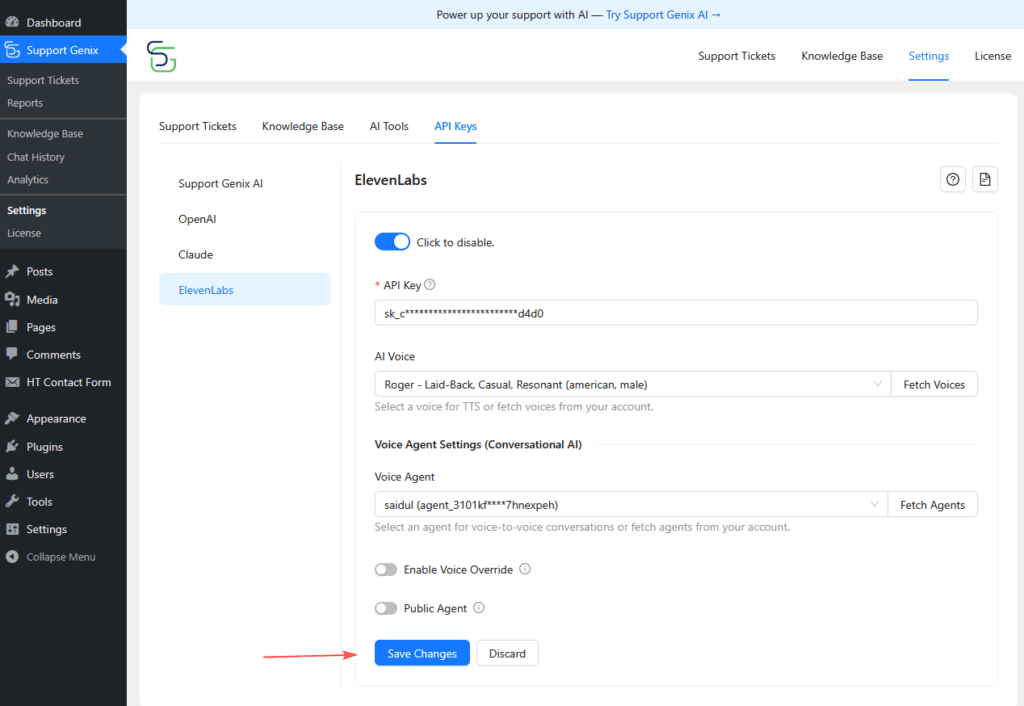
- Go to Support Genix → API Keys → ElevenLabs
- Enable the ElevenLabs toggle
- Paste your API key
- Click Fetch Voices to load available voices
- Select a preferred AI Voice
- Click Save Changes
Step 3: Enable Voice Chat Features
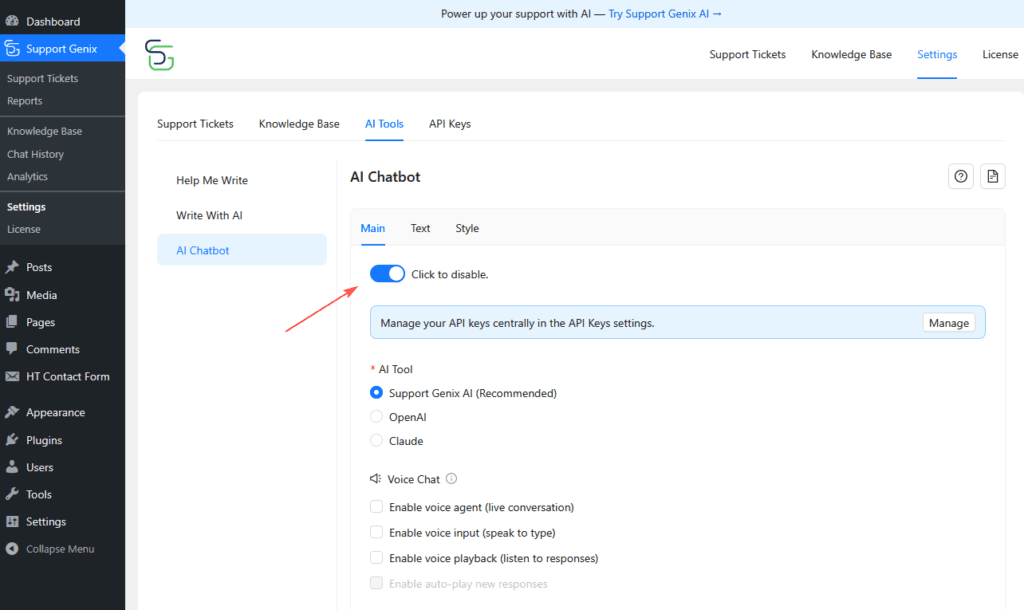
- Navigate to AI Tools → Chatbot
- Scroll to Voice Options
- Enable the voice features you want:
- Enable Voice Input
- Enable Voice Playback
- Enable Auto-play New Responses
- Enable Voice Agent
- Click Save Changes
Voice Features Explained
Voice Agent (Live Voice Conversation)
The Voice Agent enables real-time, call-style conversations between users and AI.
How it works:
- Users click the voice agent button
- A voice interface opens
- Users speak naturally
- AI replies instantly with voice
- Users can mute, unmute, or end the session
Requirements:
- ElevenLabs Voice Agent configured
- Agent selected in ElevenLabs settings
Voice Input (Speech-to-Text)
Allows users to speak instead of typing messages.
How it works:
- User clicks the microphone icon
- Speaks the question
- Clicks again to submit
- Speech is converted into text and sent to AI
Supported browsers:
Chrome, Firefox, Safari, Edge
Supported audio formats:
WebM, MP3, WAV, OGG, M4A
Voice Playback (Text-to-Speech)
Adds a speaker button to each AI response so users can listen instead of reading.
How it works:
- AI sends a text reply
- User clicks the speaker icon
- Response is read aloud using the selected voice
Auto-play New Responses
Automatically reads new AI replies without user interaction.
Note: Voice Playback must be enabled first.
ElevenLabs Settings Reference
| Setting | Description |
|---|---|
| API Key | Required to connect ElevenLabs |
| AI Voice | Voice used for text-to-speech |
| Voice Agent | Agent for live voice conversations |
| Enable Voice Override | Overrides agent’s default voice |
| Public Agent | Allows public access without authentication |
Tip:
Use Fetch Voices and Fetch Agents after adding your API key to load available options.
Chatbot Voice Options Reference
| Option | Description |
|---|---|
| Enable Voice Agent | Shows live voice conversation button |
| Enable Voice Input | Adds microphone button |
| Enable Voice Playback | Adds speaker button |
| Enable Auto-play Responses | Plays replies automatically |
Troubleshooting Common Issues
Microphone Not Working
- Ensure browser microphone permission is enabled
- Refresh the page after allowing access
No Audio Playback
- Check device volume
- Confirm an AI voice is selected in ElevenLabs settings
Voice Agent Not Connecting
- Verify Agent ID is selected
- Fetch agents again
- Disable “Public Agent” for private agents
Rate Limit Errors
ElevenLabs allows 30 requests per minute per user.
Solution: Wait briefly before sending another voice request.
Best Practices for Voice Chat
- Choose a voice that matches your brand tone
- Encourage users to use headphones for better clarity
- Mention voice support in your chatbot greeting
- Monitor usage in your ElevenLabs dashboard to manage costs
Last updated on January 18, 2026