Webhook Setup
Webhooks in SupportGenix allow you to send data to CRMs or third-party applications based on…
Read more
Welcome to the Support Genix documentation for the Slack integration! This guide provides comprehensive instructions on setting up and utilizing the Slack integration within the Support Genix plugin. By integrating Slack with Support Genix, you can streamline your support process and enhance team communication by receiving real-time notifications and updates directly in your Slack channels.
Slack integration offers numerous benefits, enhancing efficiency and customer satisfaction. Here are three key advantages:
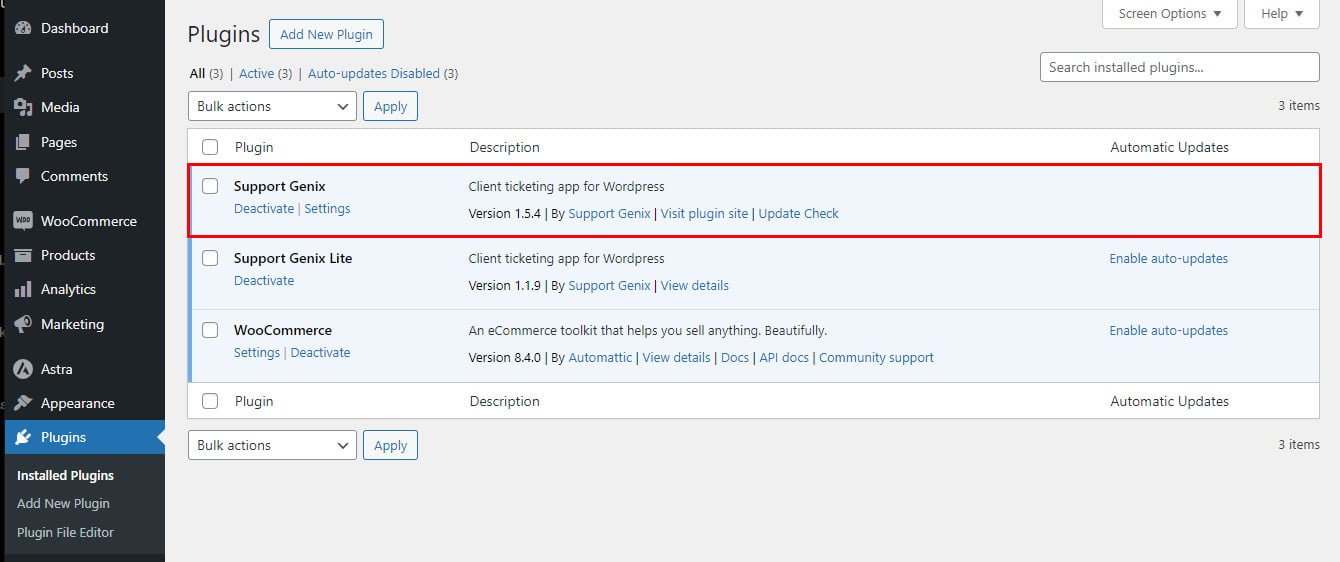
To enable Slack integration with Support Genix, make sure that Support Genix pro edition is activated on your website.
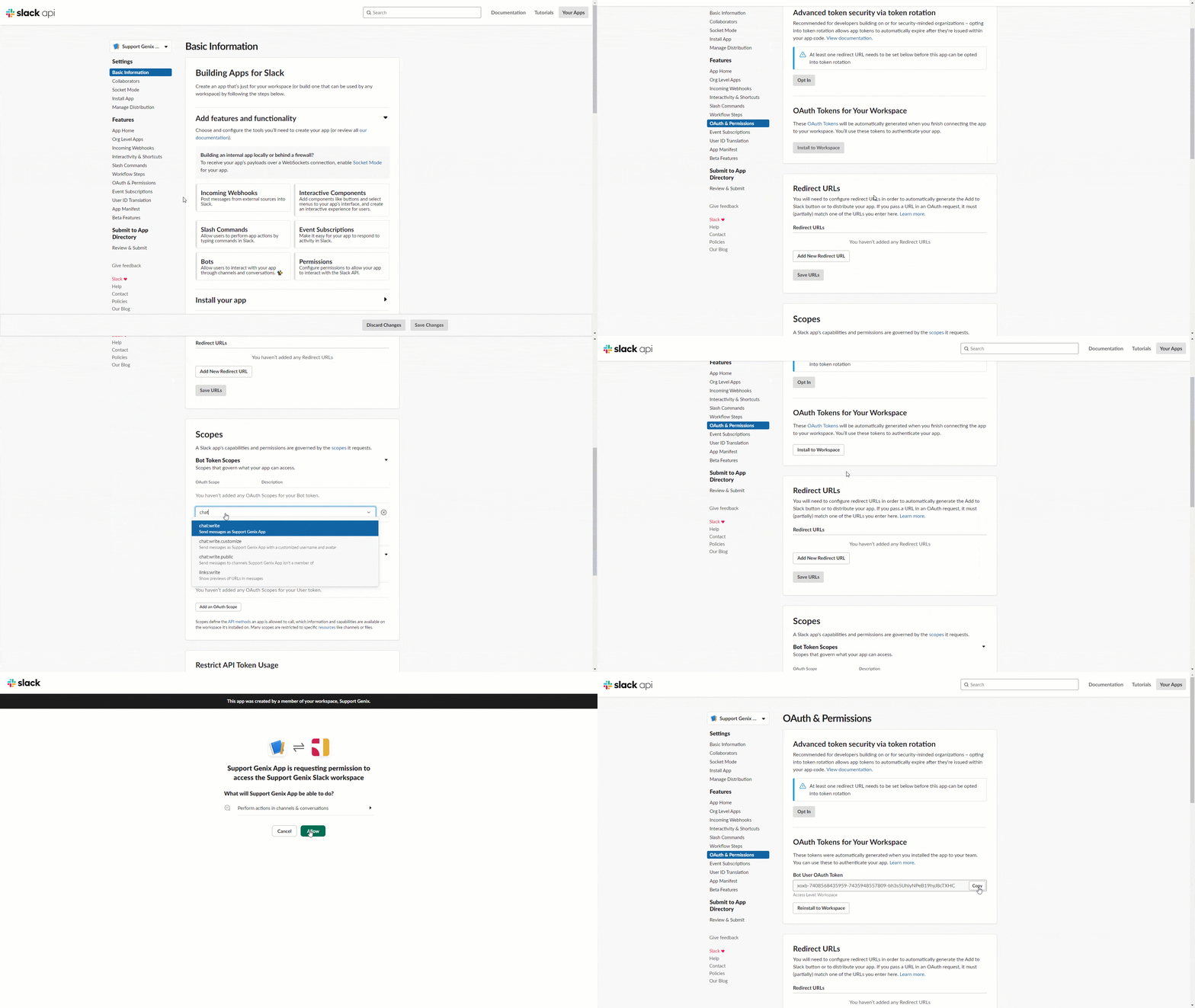
chat:write – To send messages.channels:read – To read channel information.users:read – To fetch user details.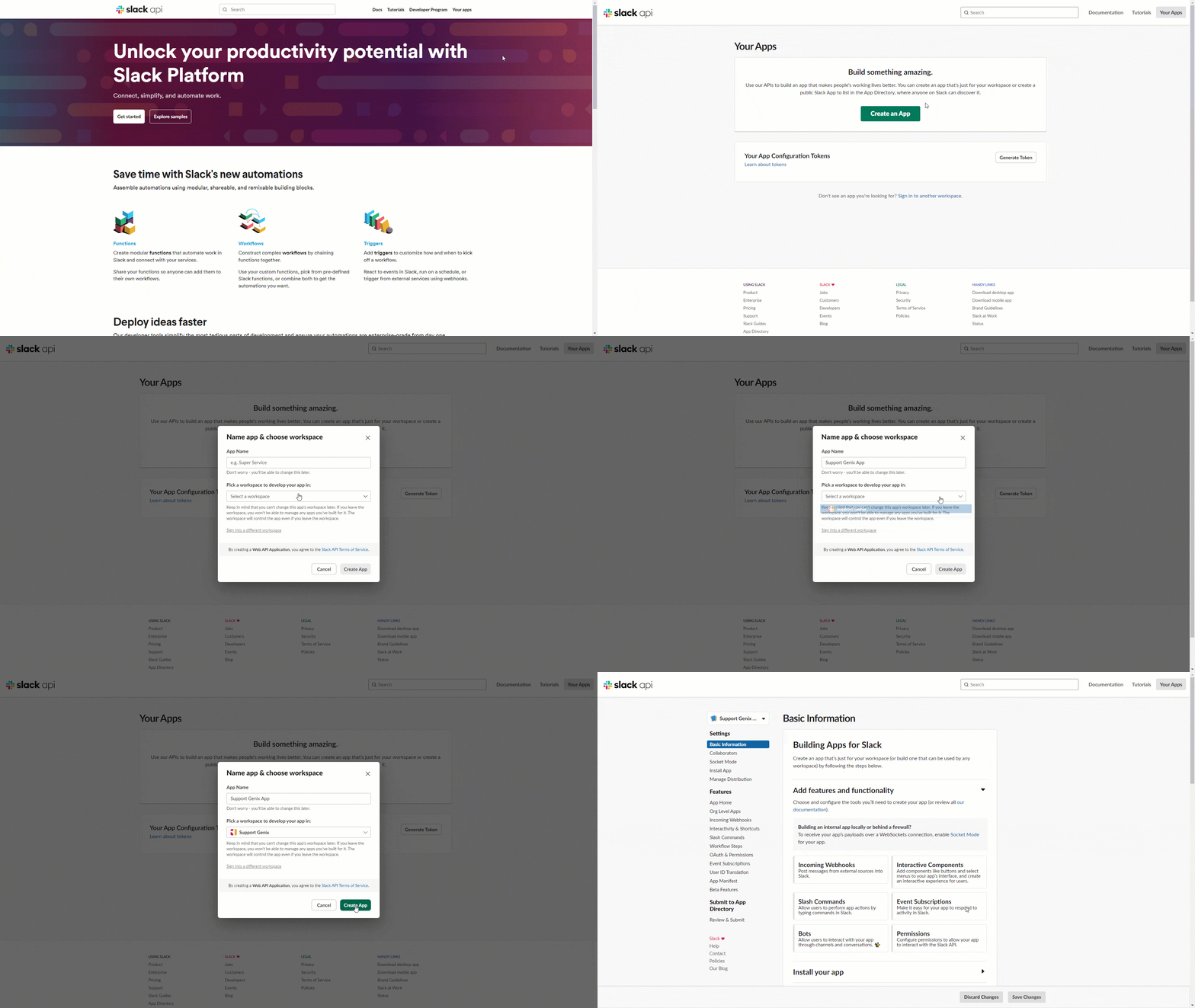
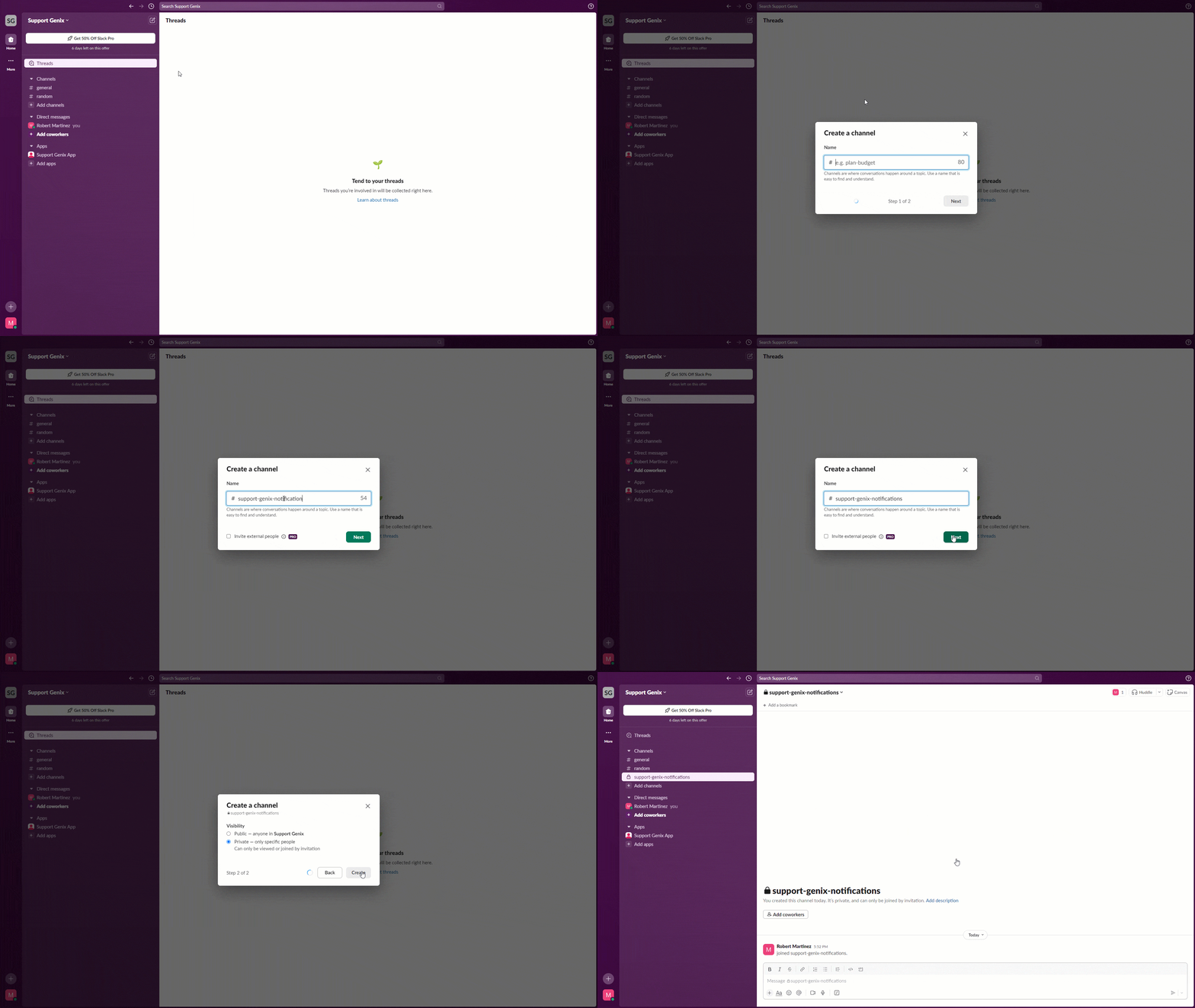
After creating the new channel, navigate to Apps in your Slack workspace. Select your app, and add it to the newly created support channel.
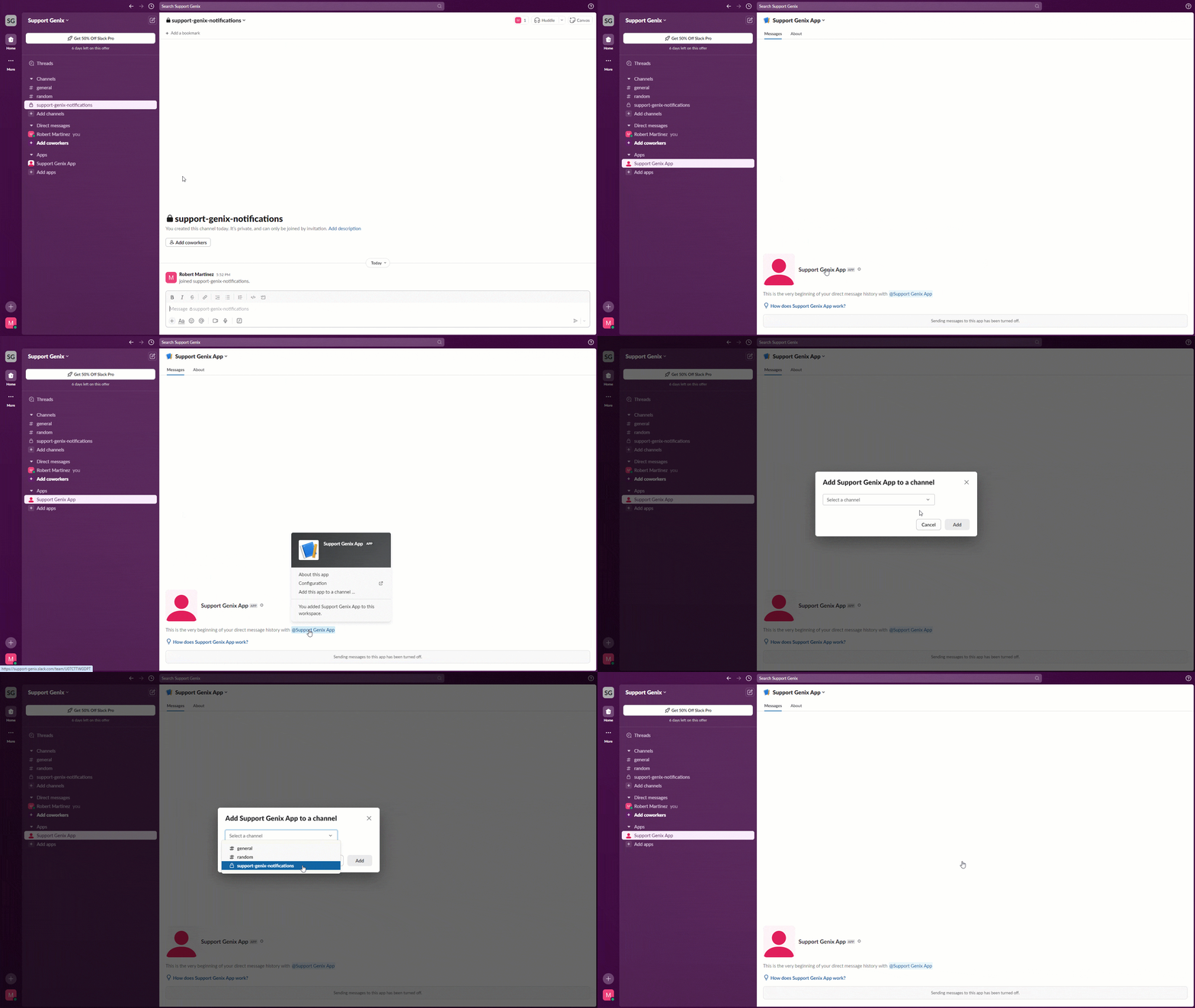
Upon completing the channel setup, copy Channel name and Channel ID. Then, paste them into the Support Genix Slack Settings.
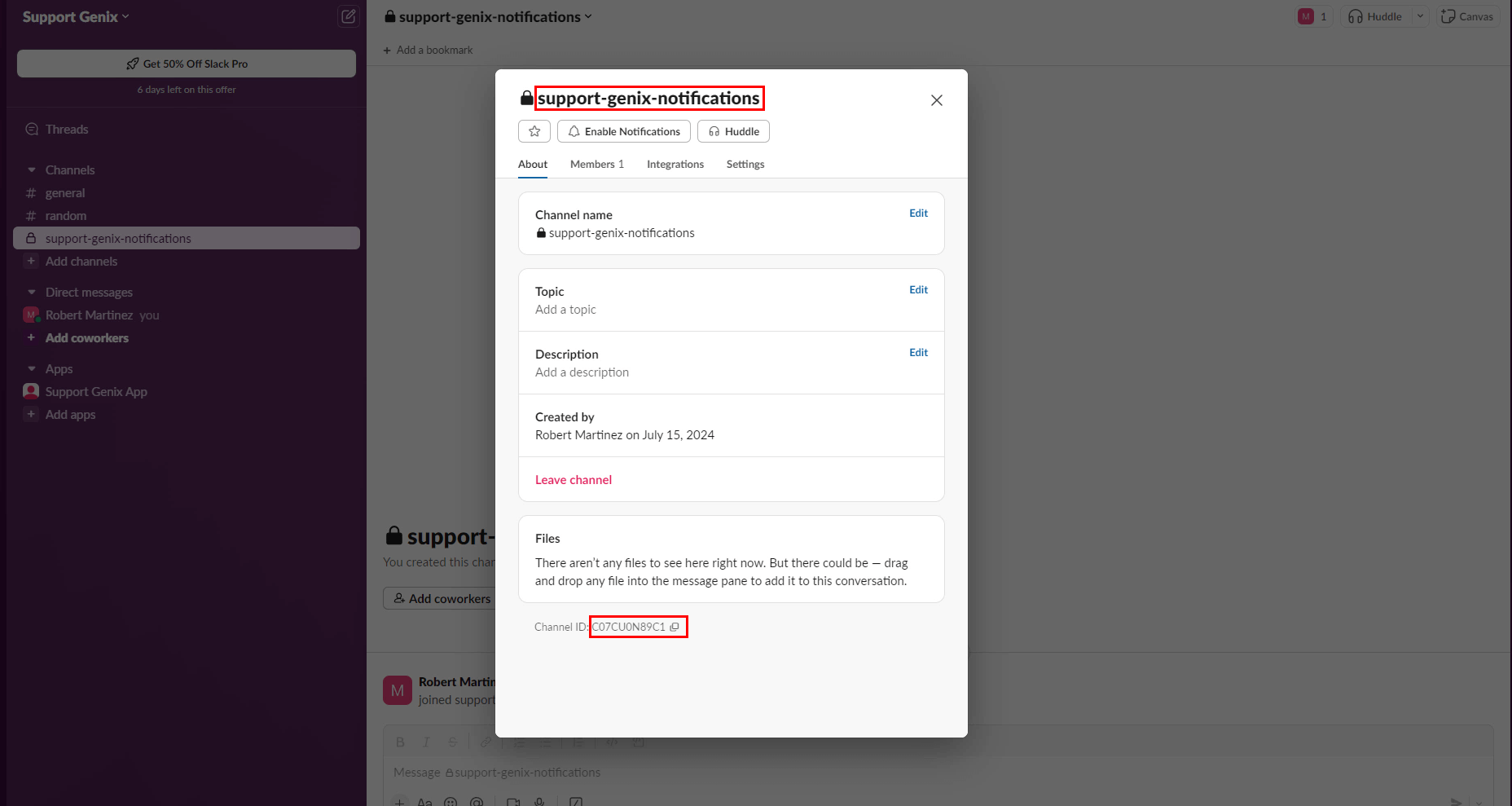
support-genix-notifications).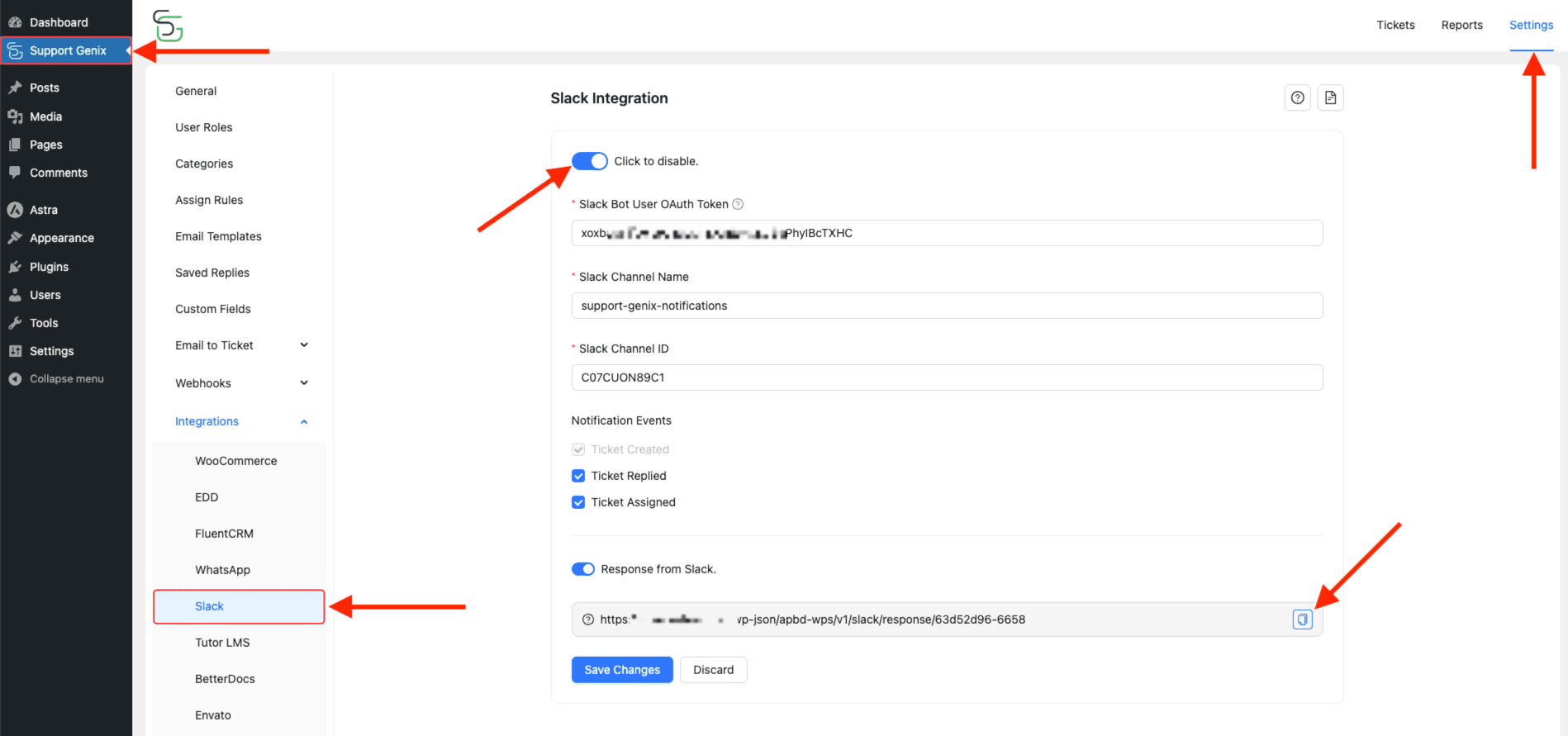
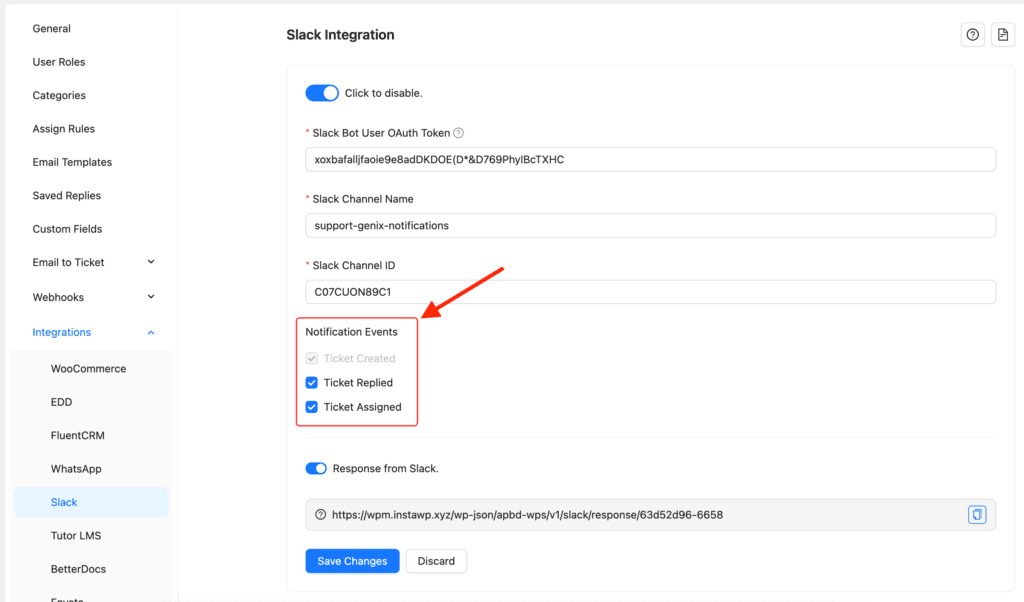
message.channelsapp_mention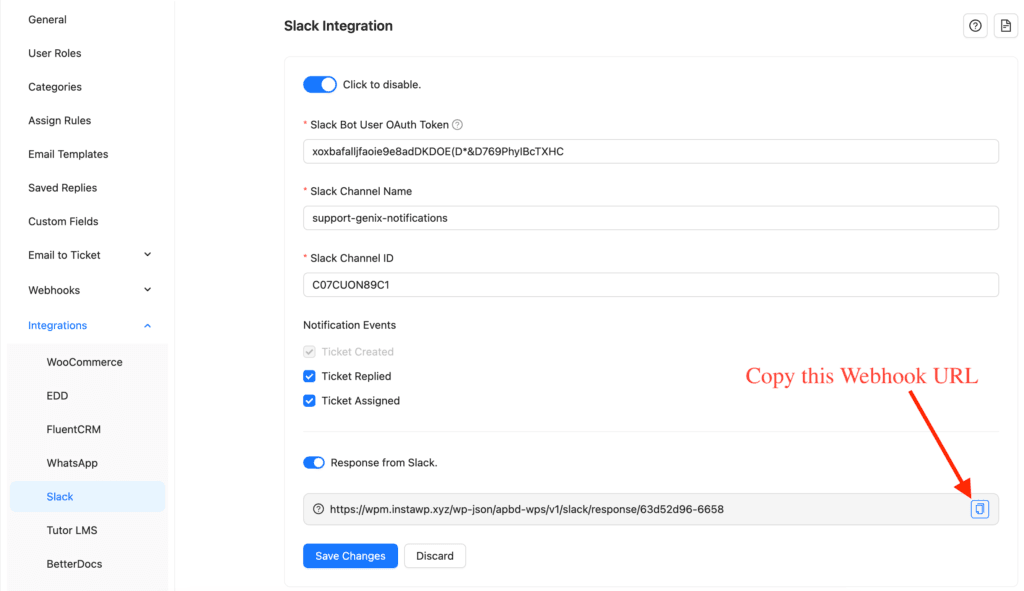
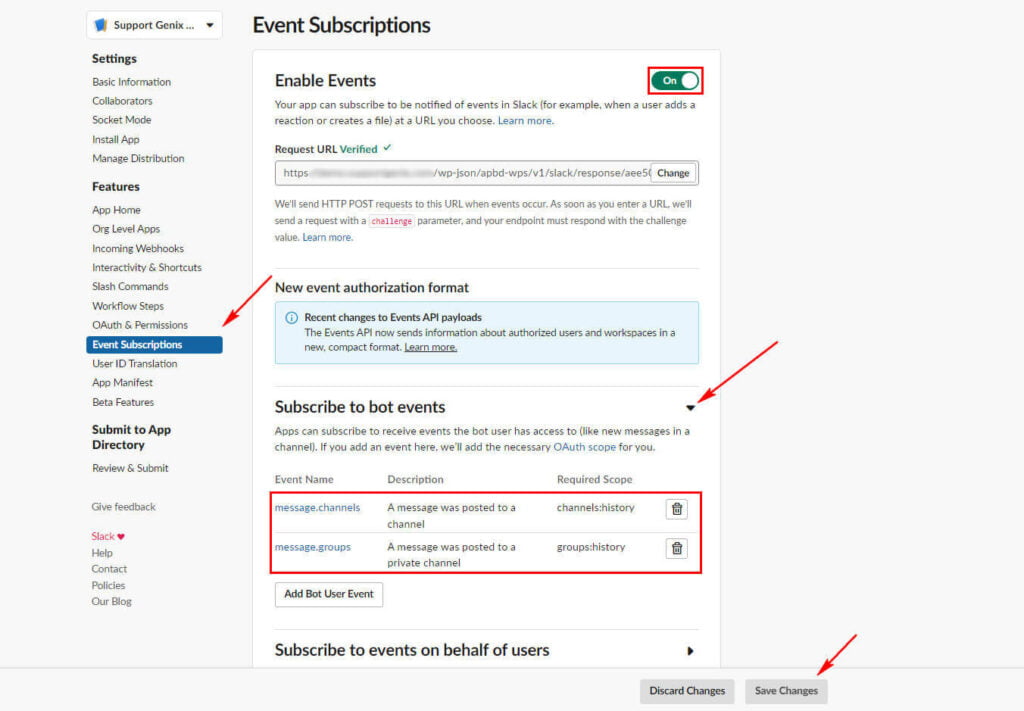
After updating the app’s permission scopes, you will receive a notification to reinstall the app. Follow the prompt to complete the reinstallation.

Once configured, Support Genix will send ticket updates to your chosen Slack channel. You can also respond to tickets directly from Slack, streamlining your support workflow.
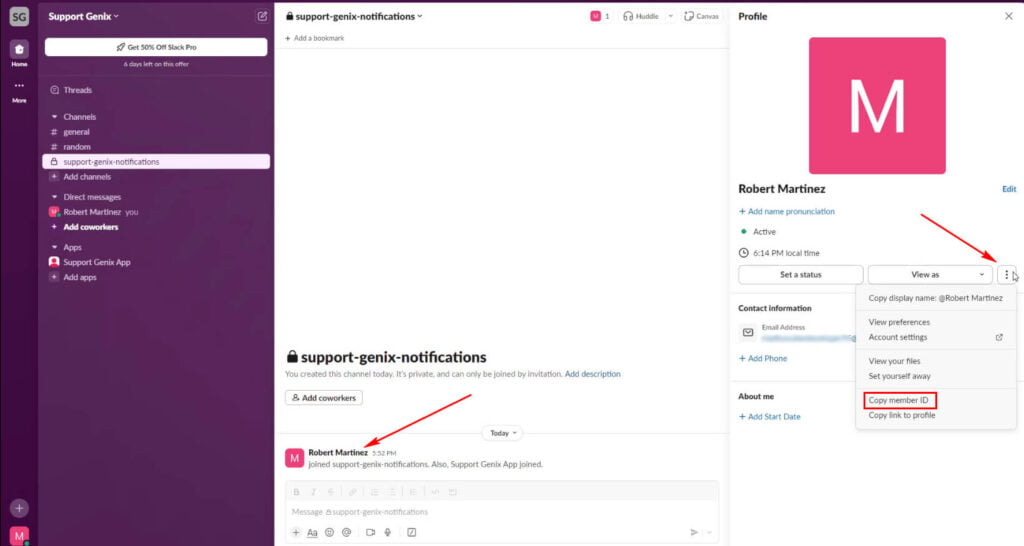
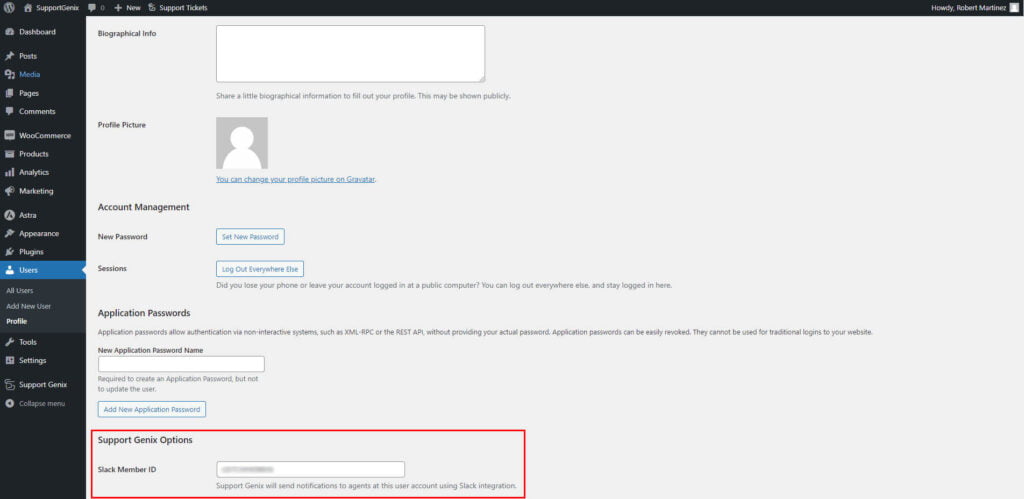
That’s it! Thank you for choosing Suport Genix to enhance your user experience. If you need additional assistance, feel free to contact our support team. Our dedicated support team would be more than happy to assist you.