
How to Configure LiteSpeed Cache for Support Genix
If you are facing problems with the Support Genix portal, such as: Unable to Log In to the Portal or View Tickets on the Ticket Page
This issue may be caused by caching conflicts with the LiteSpeed Cache plugin. Follow the steps below to resolve it:
Step 1: Access the LiteSpeed Cache Settings
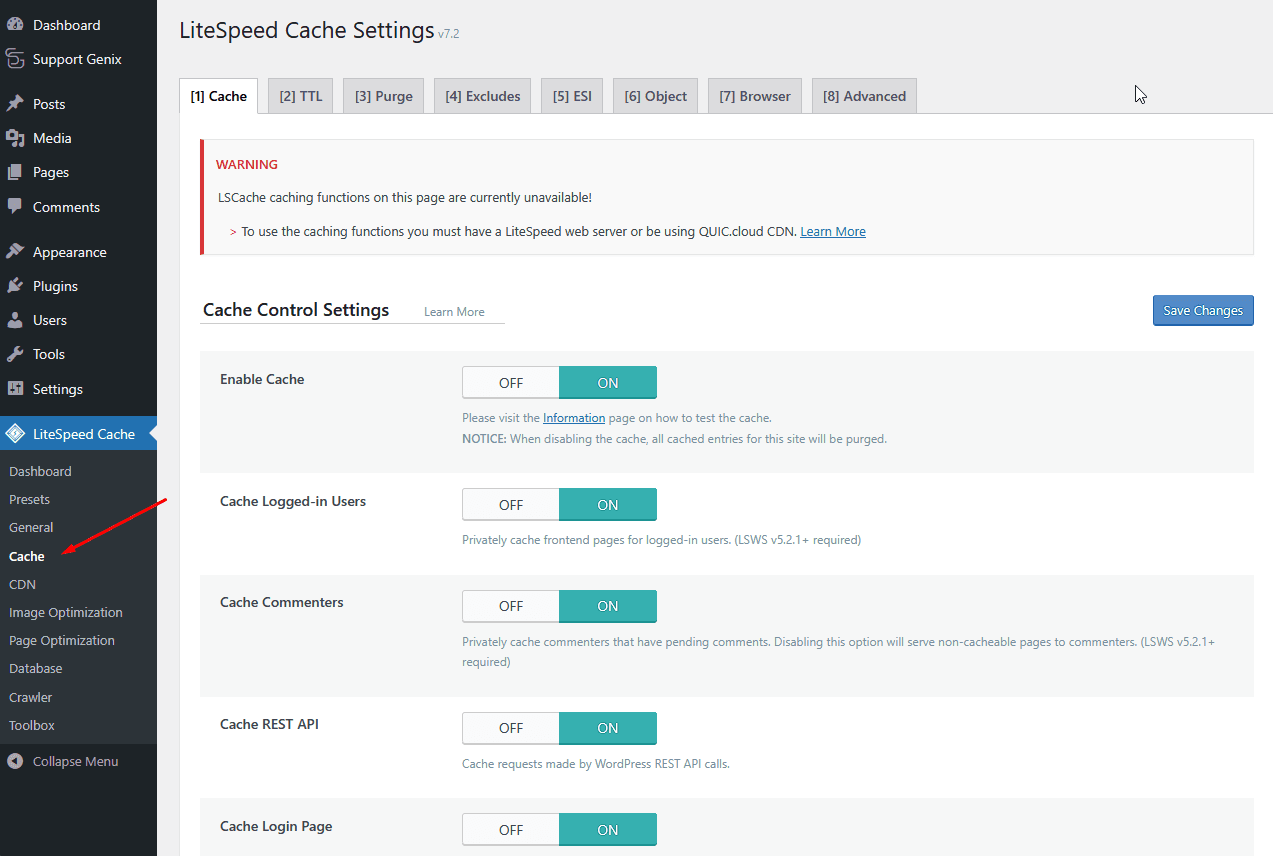
- From your WordPress Dashboard, go to LiteSpeed Cache > Cache.
Step 2: Exclude the Login Page or Portal URL
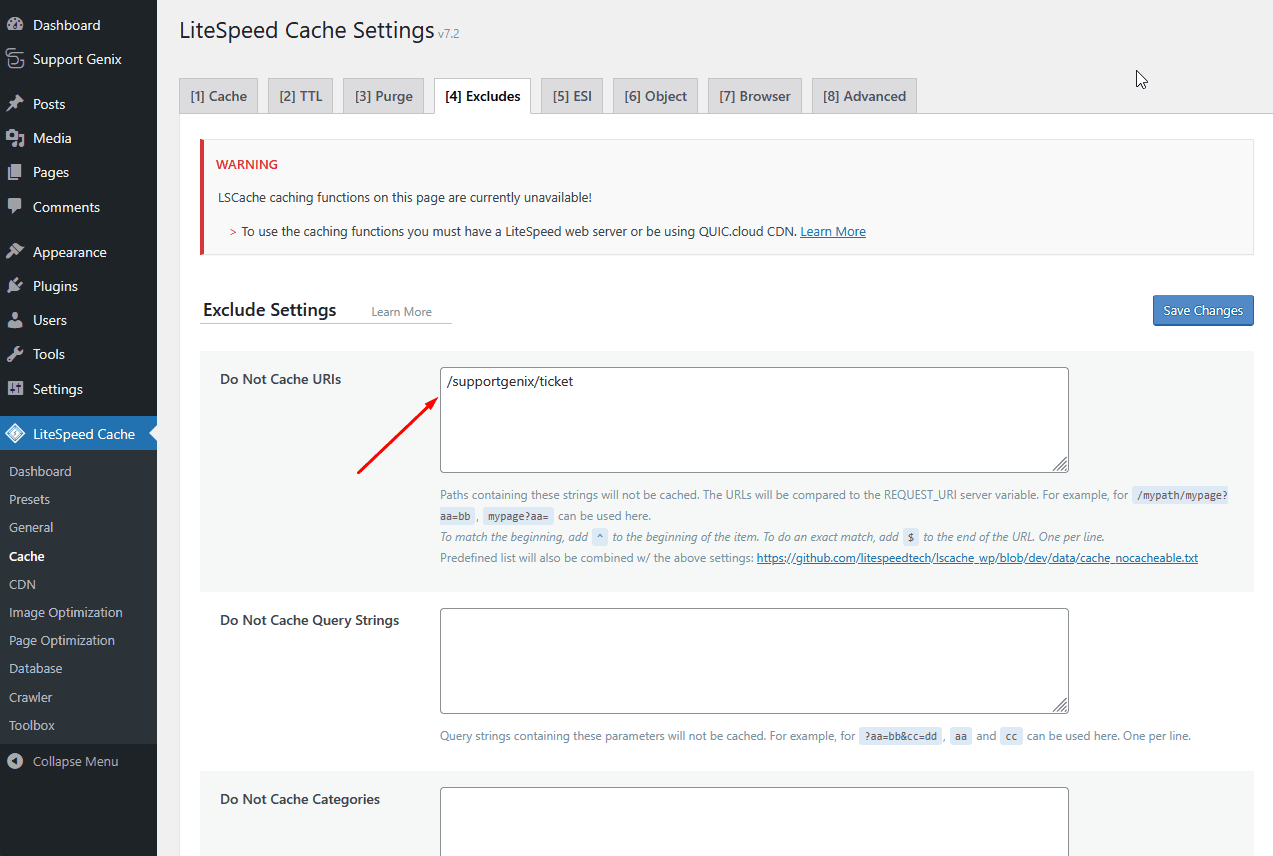
- In the “Do Not Cache URIs” section, add the login or ticket portal URL.
- For example:/supportgenix/ticket
- Click Save Changes.
Step 3: Disable REST API Caching
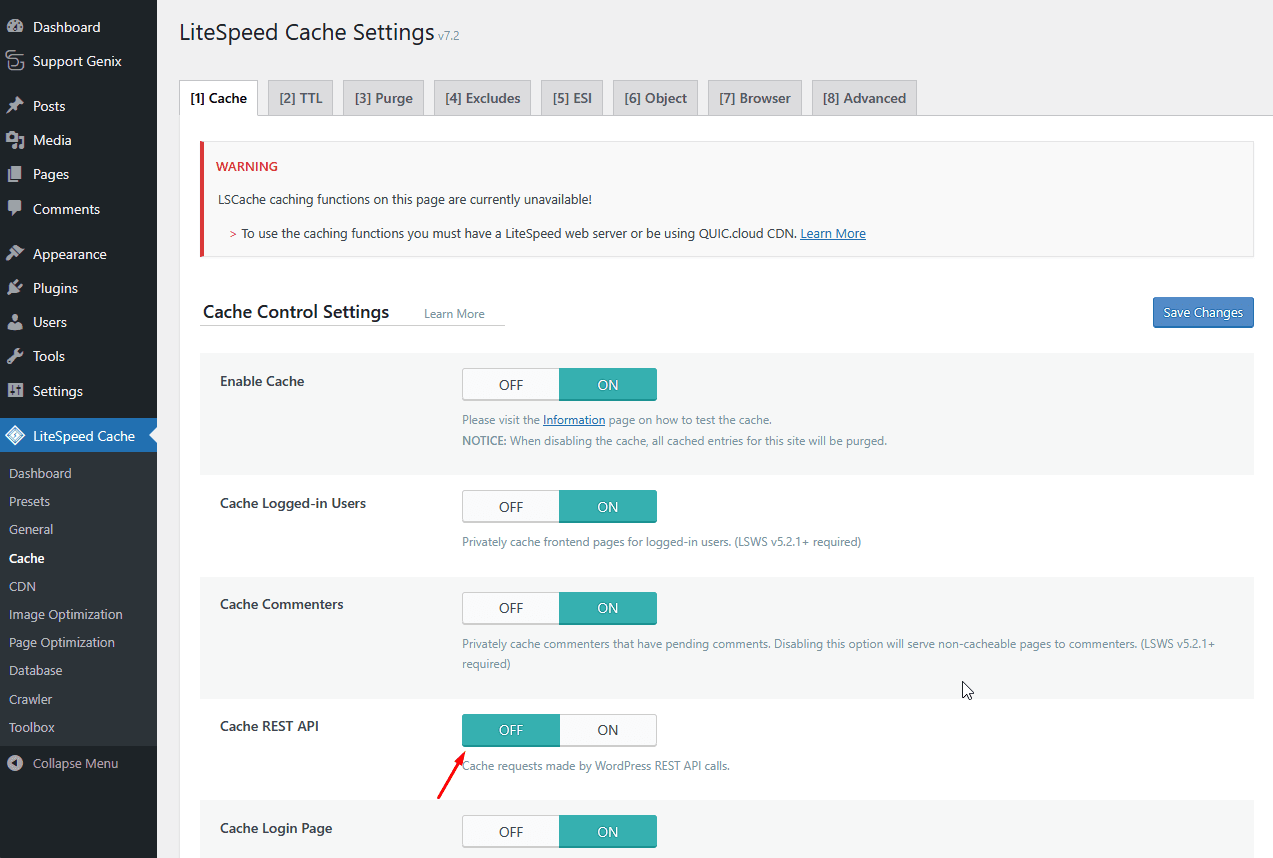
- Go to the “Cache” tab (under LiteSpeed Cache > Cache).
- Scroll down and find the option Cache REST API.
- Turn this OFF.
Step 4: Clear the Cache and Recheck the Portal
Before rechecking the portal:
Clear the cache from both your server and browser to ensure updates are applied correctly.
After these steps, revisit the ticket or login page. The issue should now be resolved.
Last updated on March 5, 2026
Was this article helpful?
Powered by Support Genix