
Support Genix AI – Built-In AI Support for WordPress Helpdesks
Support Genix AI brings built-in artificial intelligence to your customer support workflow. It allows you to use powerful AI features without creating external accounts or managing API keys, making advanced support automation simple, secure, and accessible for everyone.
What Is Support Genix AI?
Support Genix AI is a managed AI service that provides access to powerful AI models (including OpenAI, Claude, and Google AI) without requiring you to manage external API keys. Instead of creating accounts with these providers and handling billing separately, Support Genix AI handles everything for you through a simple credit-based system.
With Support Genix AI, you can:
- Respond to tickets faster with AI-assisted writing
- Provide instant answers using an AI chatbot
- Create and improve Knowledge Base articles effortlessly
No OpenAI or Claude accounts are required.
Features Powered by Support Genix AI
AI Chatbot
The AI Chatbot automatically answers customer questions using your existing Knowledge Base content. It reduces ticket volume and provides instant help, even outside business hours.
Best for:
- Common support questions
- Self-service customer support
- Reducing response time
Help Me Write
Help Me Write assists support agents while replying to tickets. It generates clear, professional responses based on the ticket context, helping agents reply faster and more confidently.
Best for:
- Faster ticket replies
- Consistent communication tone
- New or growing support teams
Write with AI
Write with AI helps you create, rewrite, or improve Knowledge Base articles directly from the editor. It ensures your documentation remains clear, helpful, and well-structured.
Best for:
- Knowledge Base creation
- Content refinement
- Improving readability and clarity
Getting Started with Support Genix AI
Step 1: Open API Keys Settings
From your WordPress dashboard, go to:
Support Genix → Settings → API Keys
The Support Genix AI tab is selected by default.
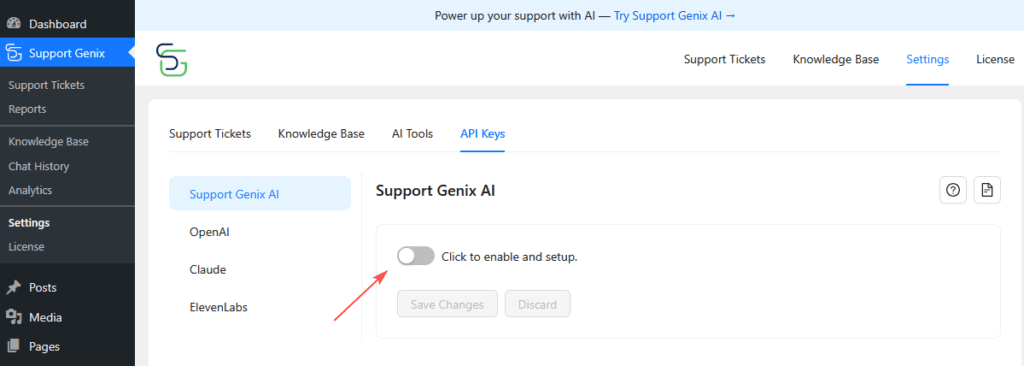
Step 2: Enable Support Genix AI
- Toggle Enable Support Genix AI
- Click Save Changes
This activates AI features across the plugin.
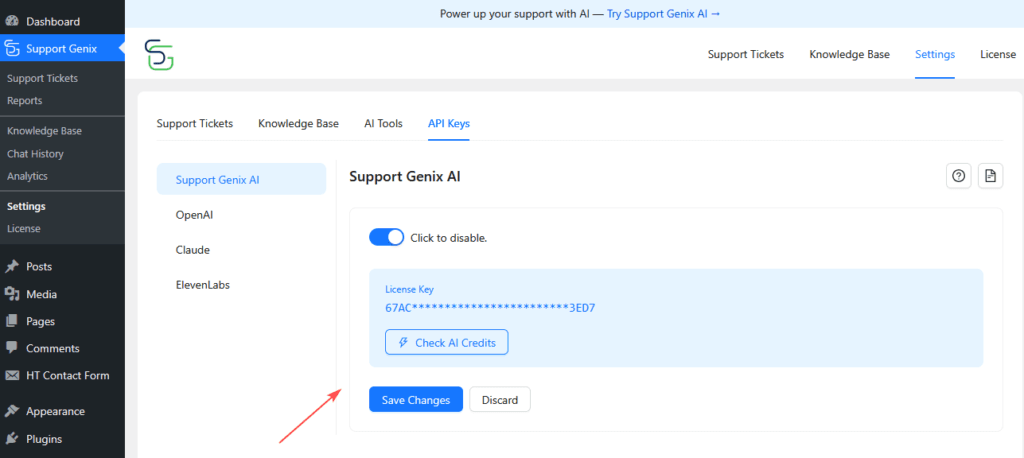
Step 3: Check AI Credits
Click Check AI Credits to connect your site and view your available credits.
- Both the Free and Pro Editions let you start using Support Genix AI instantly.
- The Pro Edition automatically uses your Support Genix license for authentication.
- Credit allocation depends on your plan.
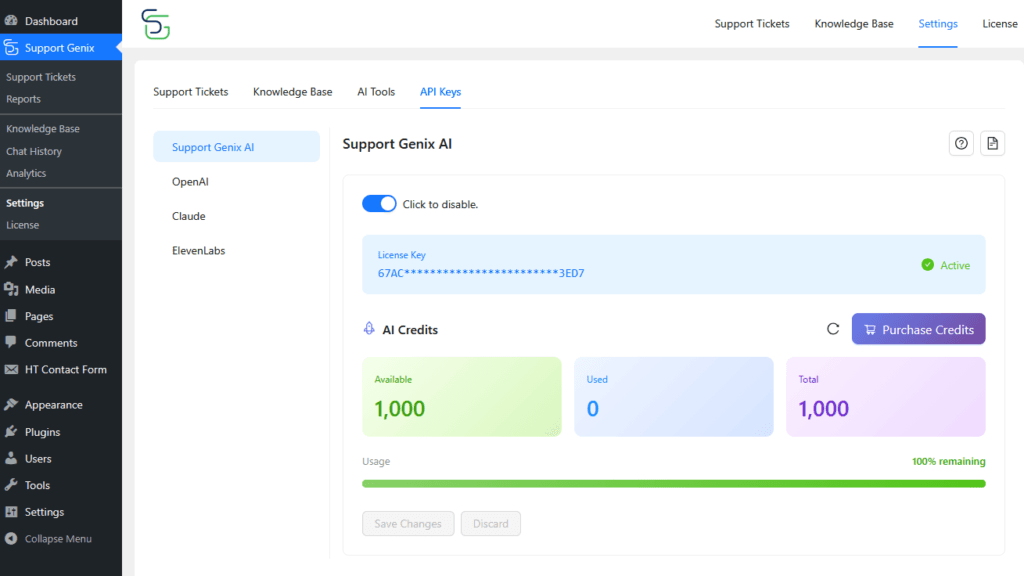
You will see:
- Available – Remaining credits
- Used – Credits already consumed
- Total – Total allocated credits
Step 4: Verify AI Provider Selection
Support Genix AI is selected by default in all AI features. You can verify or change this in each feature’s settings:
AI Chatbot:
- Go to Settings > AI Tools > AI Chatbot
- Under AI Tool, verify Support Genix AI (Recommended) is selected
Help Me Write:
- Go to Settings > AI Tools > Help Me Write
- Under AI Providers, verify Support Genix AI (Recommended) is checked
Write with AI:
- Go to Settings > AI Tools > Write with AI
- Under AI Providers, verify Support Genix AI (Recommended) is checked
Free vs Pro Edition
| Feature | Free Edition | Pro Edition |
|---|---|---|
| Setup | Automatic | Automatic |
| AI credits | Free allocation | Based on plan |
| Buy extra credits | Yes | Yes |
Understanding AI Credits
AI credits are consumed whenever an AI feature is used. The number of credits depends on the length and complexity of the request.
Check Credit Balance
- Go to Settings → API Keys → Support Genix AI
- Click Check AI Credits
Purchase Additional Credits
Click Purchase Credits to buy more credits. You will be redirected to the official Support Genix checkout page.
Using Your Own API Keys (Optional)
If you prefer using your own AI provider:
- Go to Settings → API Keys → OpenAI or Settings → API Keys → Claude
- Enter your API key
- Save changes
You can switch between Support Genix AI and your own API keys at any time.
Troubleshooting
Unable to Fetch Credits
This occurs when the plugin cannot connect to Support Genix AI servers.
Solution:
- Check your internet connection
- Click Retry
- Contact support if the issue continues
Insufficient AI Credits
Your available credits have been used.
Solution: Purchase additional credits or switch to your own API keys.
No License Key Found (Pro Only)
Your Pro license is not activated.
Solution: Activate your license from the License tab.
License Expired (Pro Only)
Your Support Genix license has expired.
Solution: Renew your license from the official Support Genix website.
Frequently Asked Questions
Do I need a license key to use Support Genix AI?
- Free Edition: No license required
- Pro Edition: A valid license key is required
Do I need an OpenAI or Claude account?
No. Support Genix AI handles the connection to AI providers on your behalf. You don’t need to create or manage external accounts.
Can I use my own API keys?
Yes. You can configure OpenAI or Claude API keys and choose your preferred provider.
What happens when credits run out?
AI features will pause until you purchase more credits or switch to your own API keys.
Last updated on January 20, 2026
Was this article helpful?
Powered by Support Genix