
How to Get an ElevenLabs API Key
To enable Voice Chat in Support Genix, you need an ElevenLabs API key. This key allows Support Genix to use ElevenLabs’ voice technologies such as text-to-speech, speech-to-text, and live voice agents.
This guide walks you through the entire process step by step.
Before You Begin
Make sure you have:
- An active ElevenLabs account
- Access to the Developers section in ElevenLabs
- Support Genix Pro installed and activated
Step-by-Step Guide to Generate an ElevenLabs API Key
Step 1: Log in to ElevenLabs
- Visit https://elevenlabs.io
- Log in using your account credentials
(If you don’t have an account yet, create one first.)
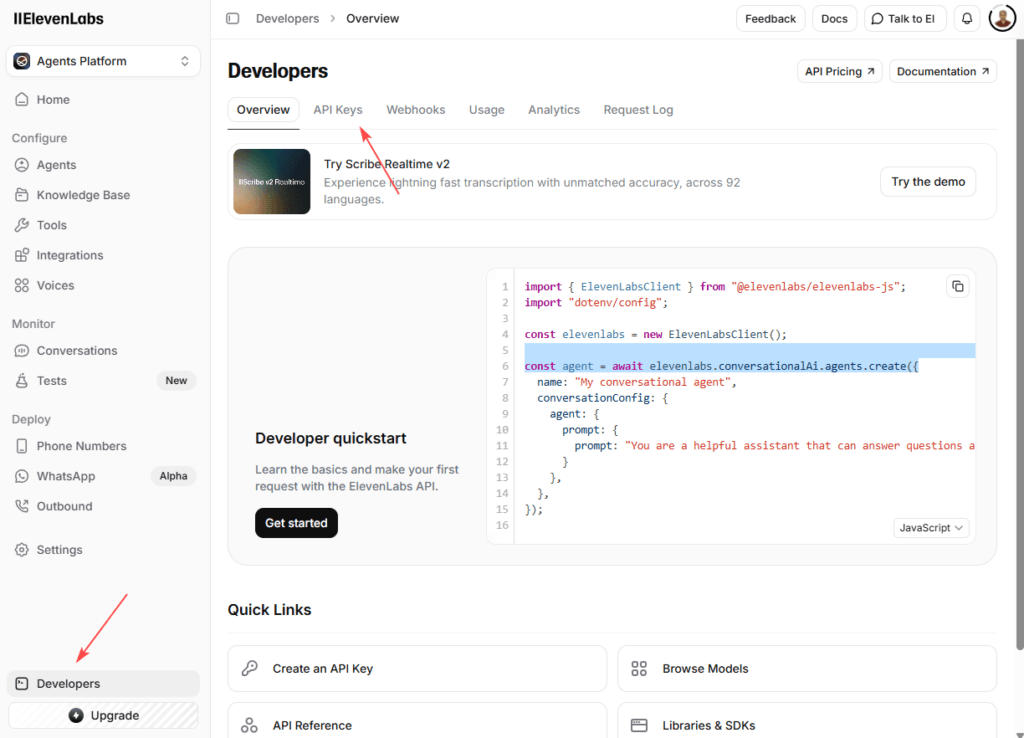
Step 2: Open the Developers → API Keys Page
- Click on Developers menu at bottom
- From the tabs, select API Keys
This page displays all existing API keys linked to your account.
📌 Refer to the screenshots above for visual guidance.
Step 3: Create a New API Key
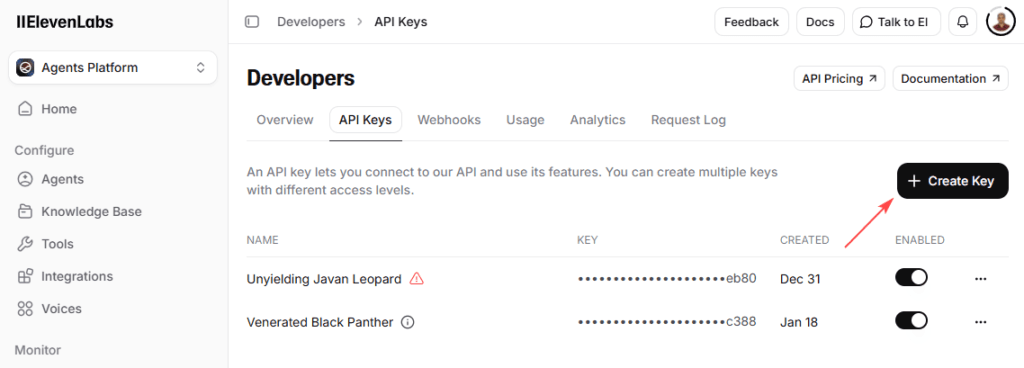
- Click the Create Key button
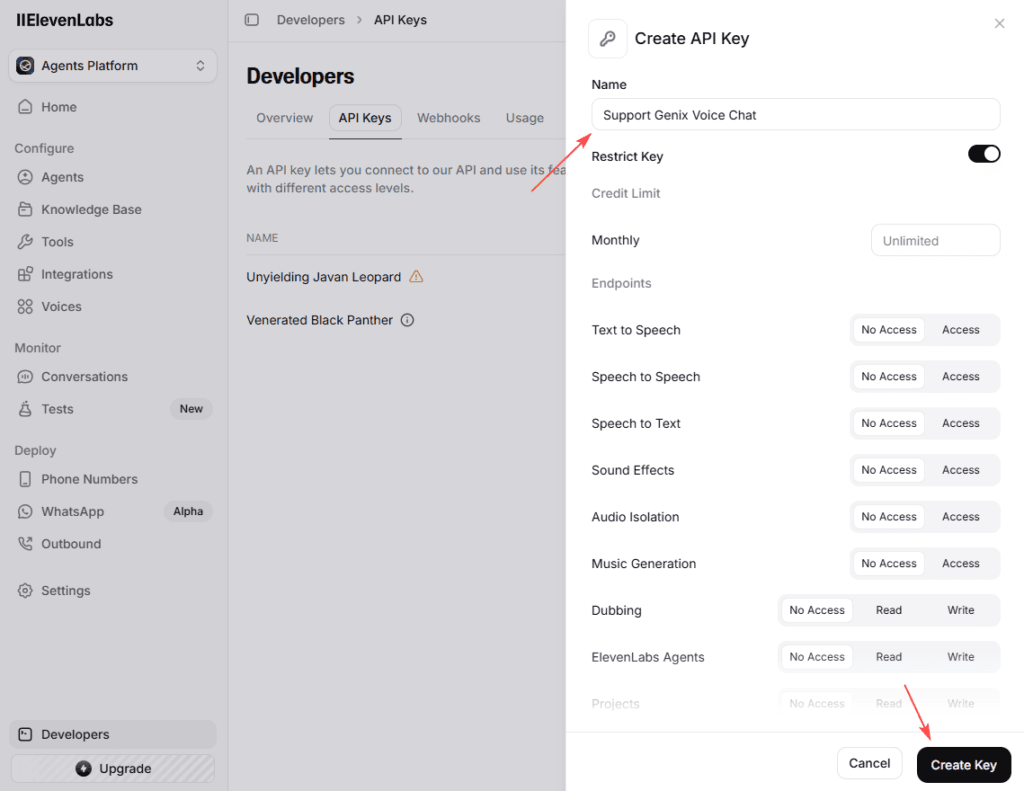
- Enter a name for your key
Example:Support Genix Voice Chat - (Optional) Enable Restrict Key to limit permissions for better security
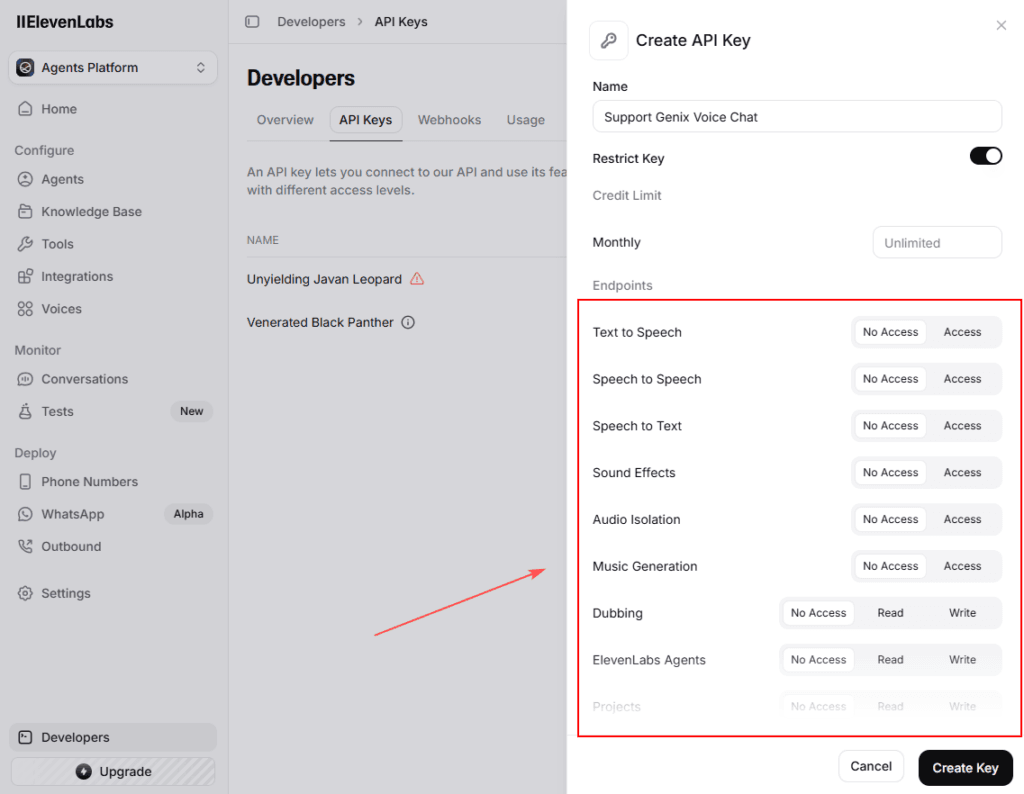
- Configure the required permissions:
Recommended Permissions
- Text to Speech → Access
- Speech to Text → Access
- Speech to Speech → Access
- ElevenLabs Agents → Read / Write (required for Voice Agent feature)
⚠️ If no permissions are selected, ElevenLabs will show a warning and the key will not function correctly.
- Click Create Key
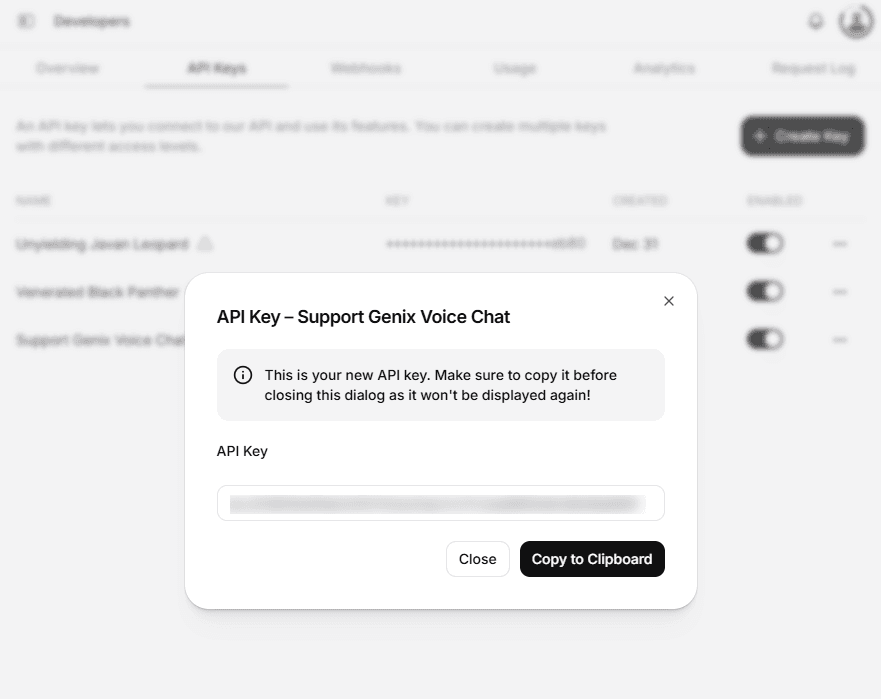
Step 4: Copy and Save Your API Key
- After creation, a popup will display your new API key
- Click Copy to Clipboard
- Store the key securely
⚠️ Important:
This API key is shown only once. If you close the popup without copying it, you’ll need to create a new key.
Using the API Key in Support Genix
Once your API key is ready:
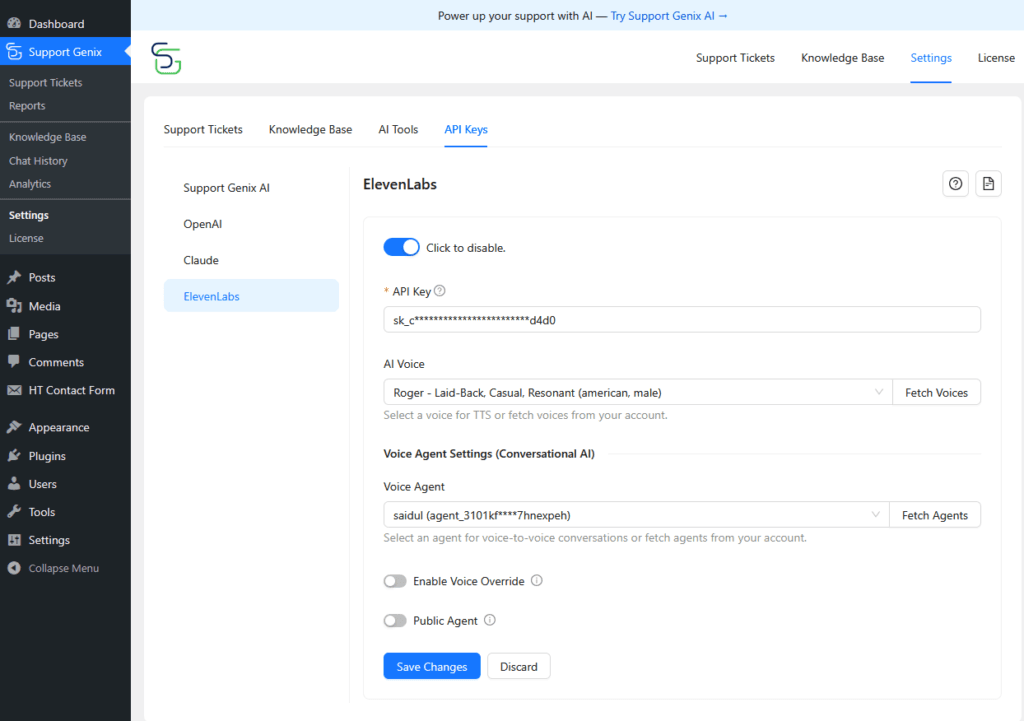
- Go to your WordPress dashboard
- Navigate to Support Genix → API Keys → ElevenLabs
- Paste the ElevenLabs API key
- Click Save Changes
- Use Fetch Voices and Fetch Agents to complete setup
Your Voice Chat features will now be ready to use.
Security & Best Practices
- Never share your API key publicly
- Use restricted permissions whenever possible
- Regenerate the key if it’s accidentally exposed
- Monitor usage and limits from the ElevenLabs dashboard
Troubleshooting
API Key Not Working
- Make sure required permissions are enabled
- Ensure the key is pasted correctly in Support Genix
- Check your ElevenLabs account status and balance
“No Permissions Selected” Warning
- At least one endpoint permission must be enabled
- Recreate the key with proper access settings
What’s Next?
After adding the API key, you can:
- Enable Voice Input
- Activate Voice Playback
- Configure Voice Agent for live conversations
- Customize voice behavior from Chatbot → Voice Options
Last updated on March 5, 2026
Was this article helpful?
Powered by Support Genix