
How to Configure API Keys in SupportGenix
SupportGenix manages all AI provider API keys from a centralized location.
This allows you to configure your AI services once and use them across all AI-powered features, such as Help Me Write, Write with AI, and AI Chatbot.
This is a one-time setup. Once configured, your API keys will automatically apply to all AI features in SupportGenix.
Before You Start
Make sure:
Helpful links:
Step 1: Open API Keys Settings
- Log in to your WordPress admin dashboard
- Go to SupportGenix → Settings
- Click the API Keys tab
You will see a list of supported AI providers.
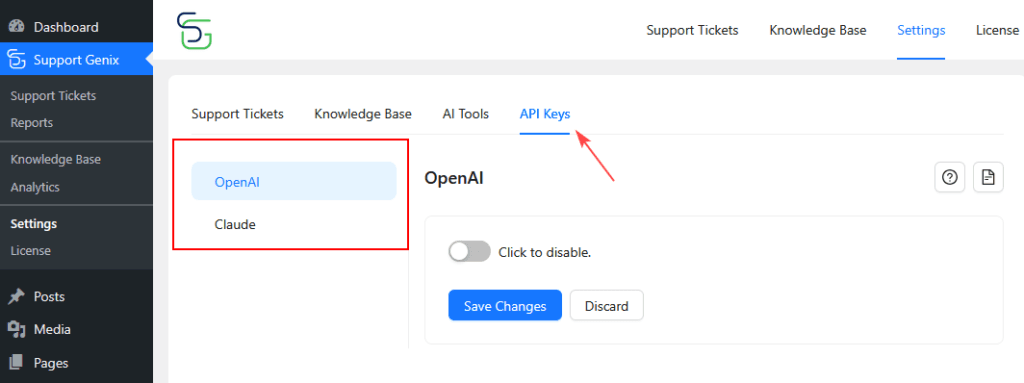
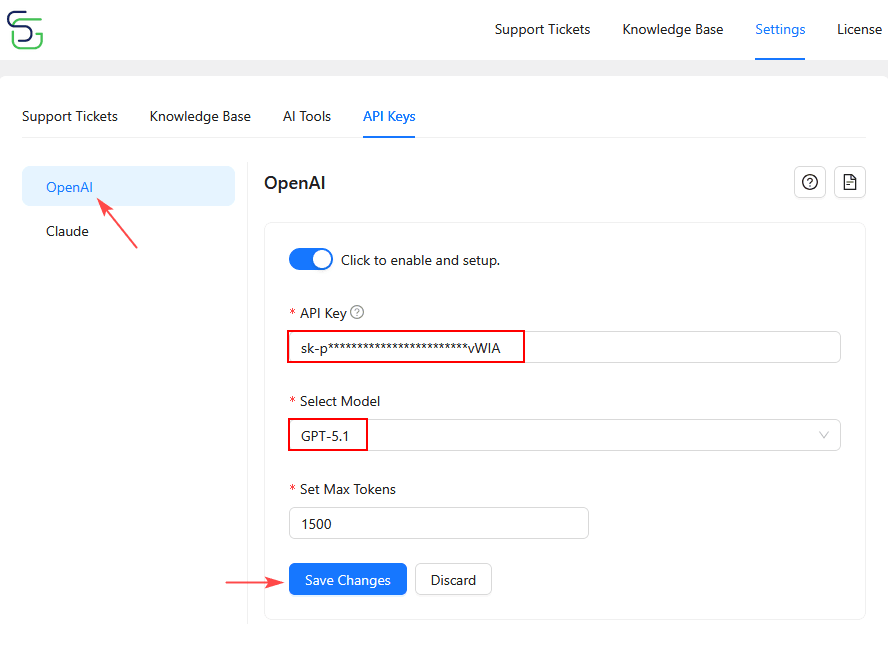
Step 2: Configure OpenAI API Key
- Click OpenAI from the left panel
- Toggle OpenAI to Enable
- Enter your OpenAI API Key
- Select a model
Example: GPT-5.1 - Set Max Tokens
(Recommended: 1000–1500 for balanced performance) - Click Save Changes
OpenAI is now ready to use across SupportGenix.
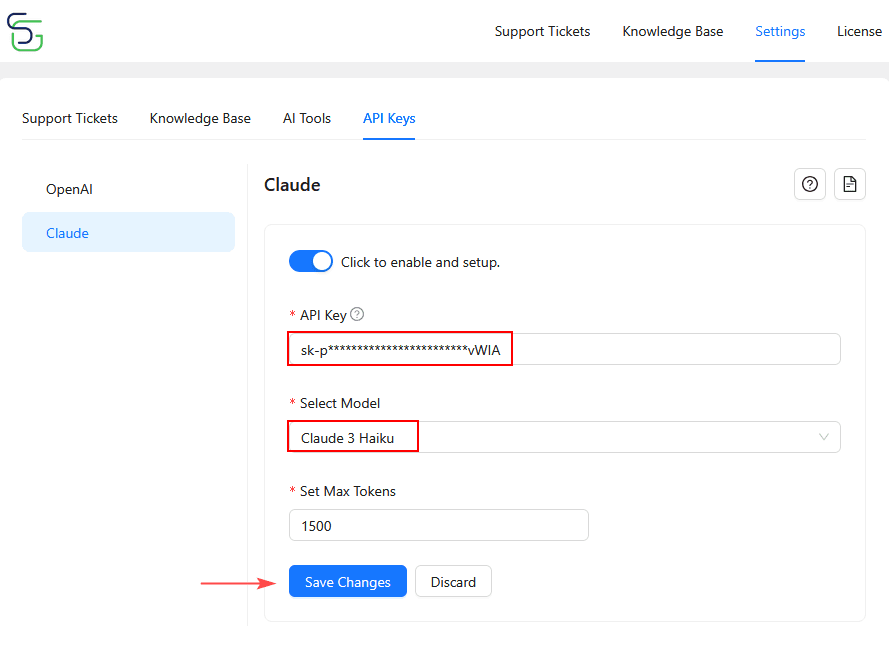
Step 3: Configure Claude API Key
- Click Claude from the left panel
- Toggle Claude to Enable
- Enter your Claude API Key
- Click Save Changes
You can enable Claude alongside OpenAI for flexibility and future use.
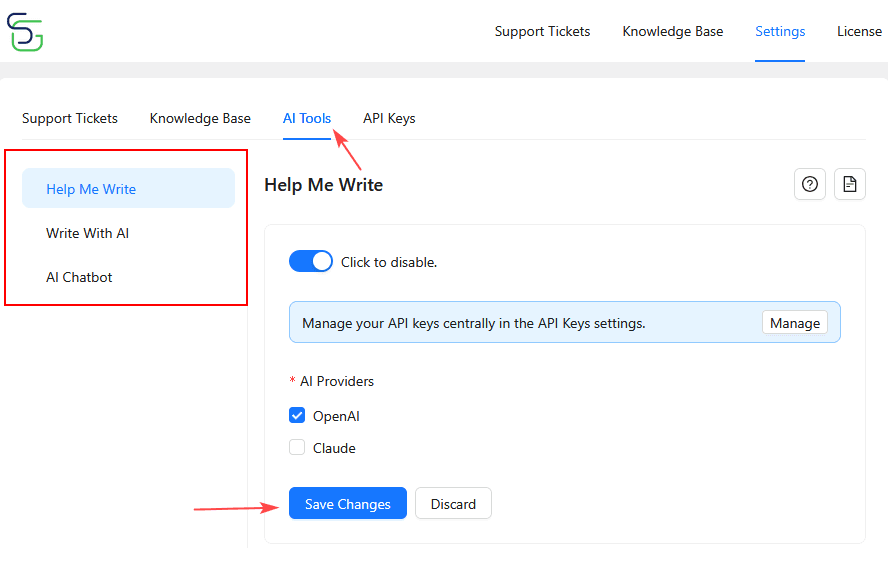
Step 4: Enable AI Providers for Features
After configuring API keys:
- Go to SupportGenix → Settings → AI Tools
- Open the AI feature you want to use (e.g., Help Me Write)
- Toggle the feature to Active
- Select the AI provider(s) you want to use
- Click Save Changes
API keys are managed centrally, but AI providers must be enabled per feature.
Important Notes
- At least one AI provider must be enabled for AI features to work
- API keys are not stored per feature
- You can update or replace API keys anytime from API Keys settings
- Disabling a provider will stop all AI features using that provider
Common Issues & Troubleshooting
AI feature not working?
- Check that the AI provider is enabled in AI Tools
- Confirm the API key is valid and saved
- Ensure you selected a model (OpenAI)
Changed API key recently?
- Save changes and refresh the page
- Re-test the AI feature
What’s Next?
Once API keys are configured, continue with the specific AI feature documentation:
Last updated on March 5, 2026
Was this article helpful?
Powered by Support Genix