
How to Configure Knowledge Base Access and Permissions in Support Genix
The Permissions section in SupportGenix allows you to control who can write documentation, access analytics, and configure Knowledge Base settings. This is especially useful for teams working together to manage content, monitor performance, and ensure only the right users have access to sensitive actions.
Accessing the Permissions Settings
To manage permissions:
- Go to your WordPress dashboard.
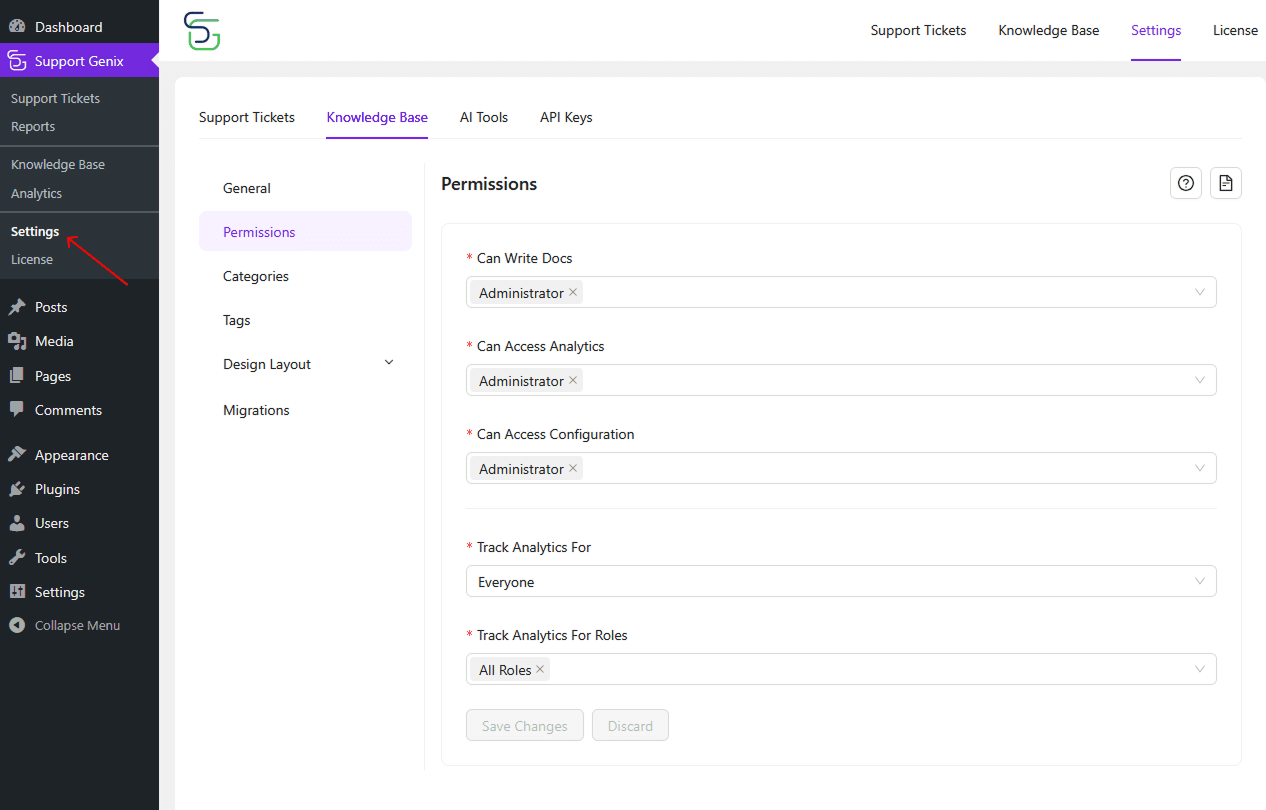
- Click on SupportGenix > Settings > Knowledge Base.
- Select the Permissions tab from the left sidebar.
Available Permission Options
Here’s a breakdown of each setting in the Permissions panel:
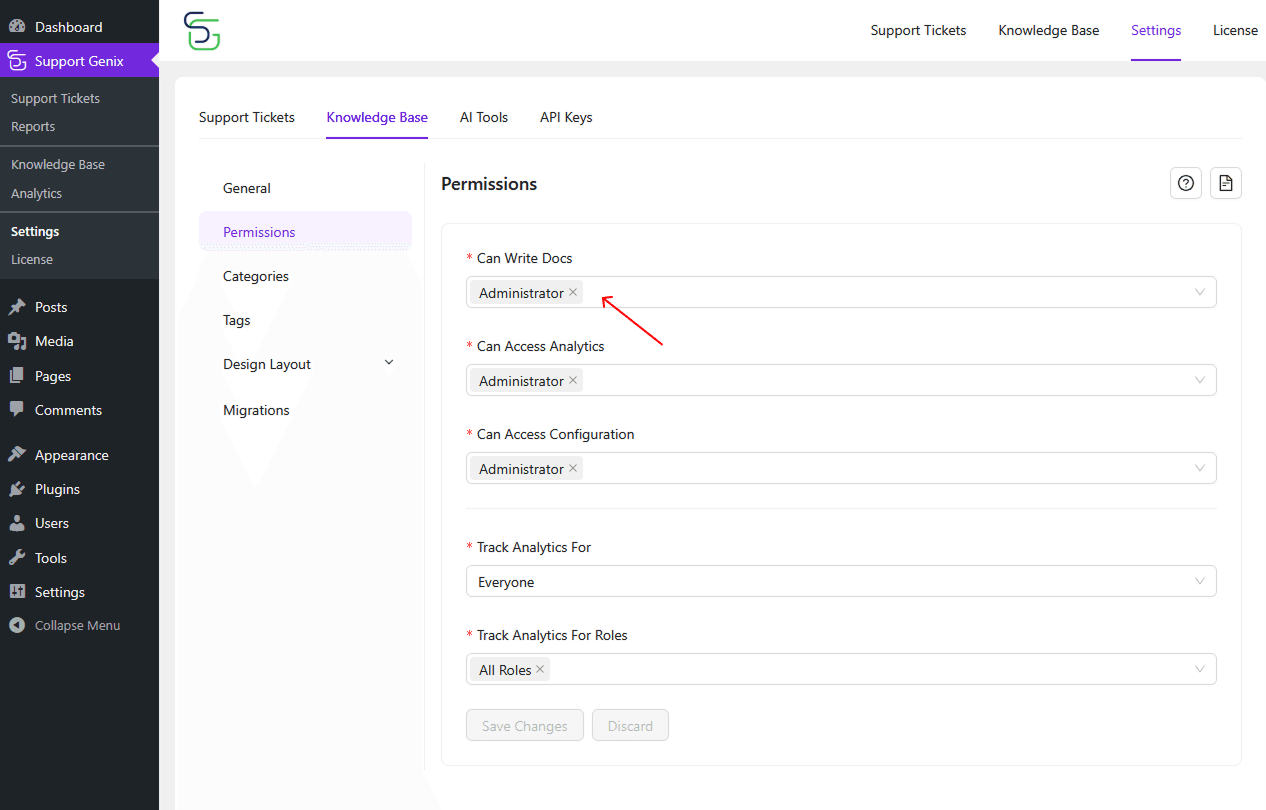
Can Write Docs
Choose which user roles are allowed to create and edit Knowledge Base articles.
Example: Grant this access to Administrators or Editors only.
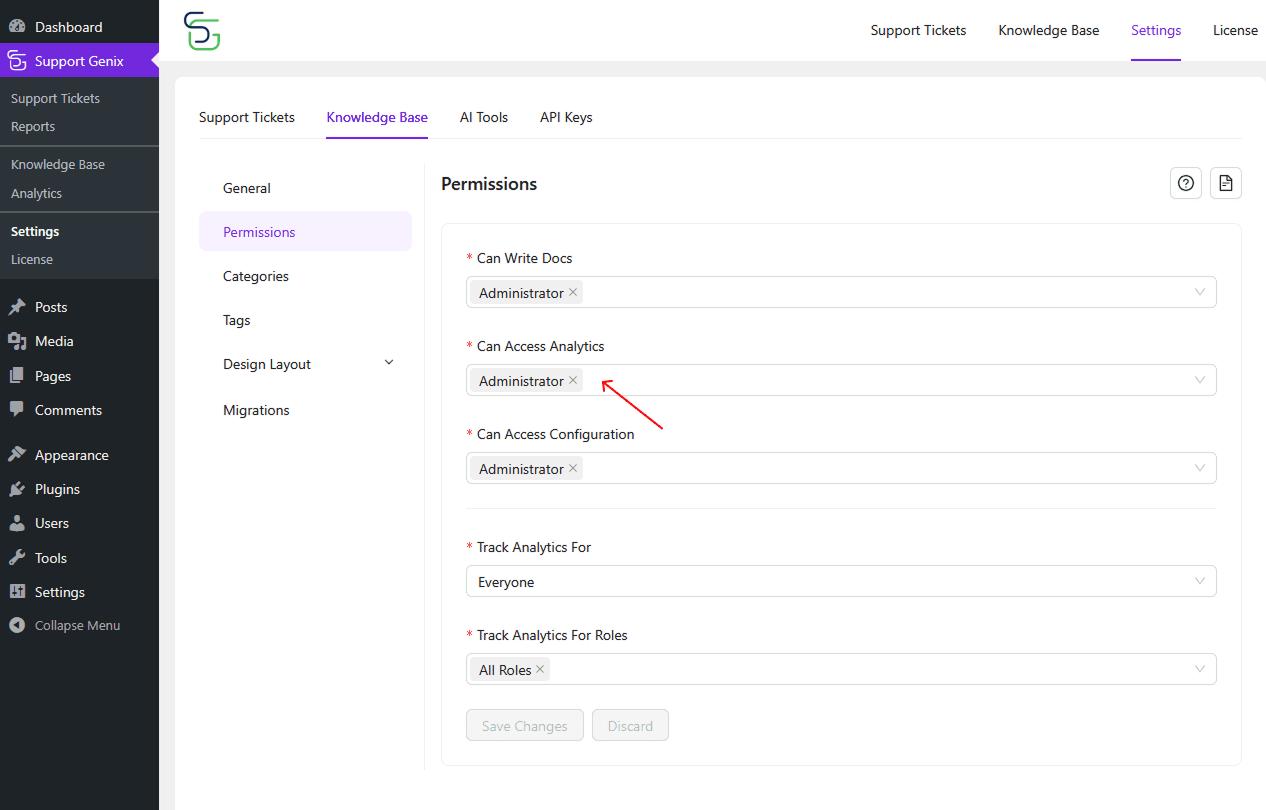
Who Can Access Analytics
Set which roles can view documentation analytics, including views, reactions, and performance metrics.
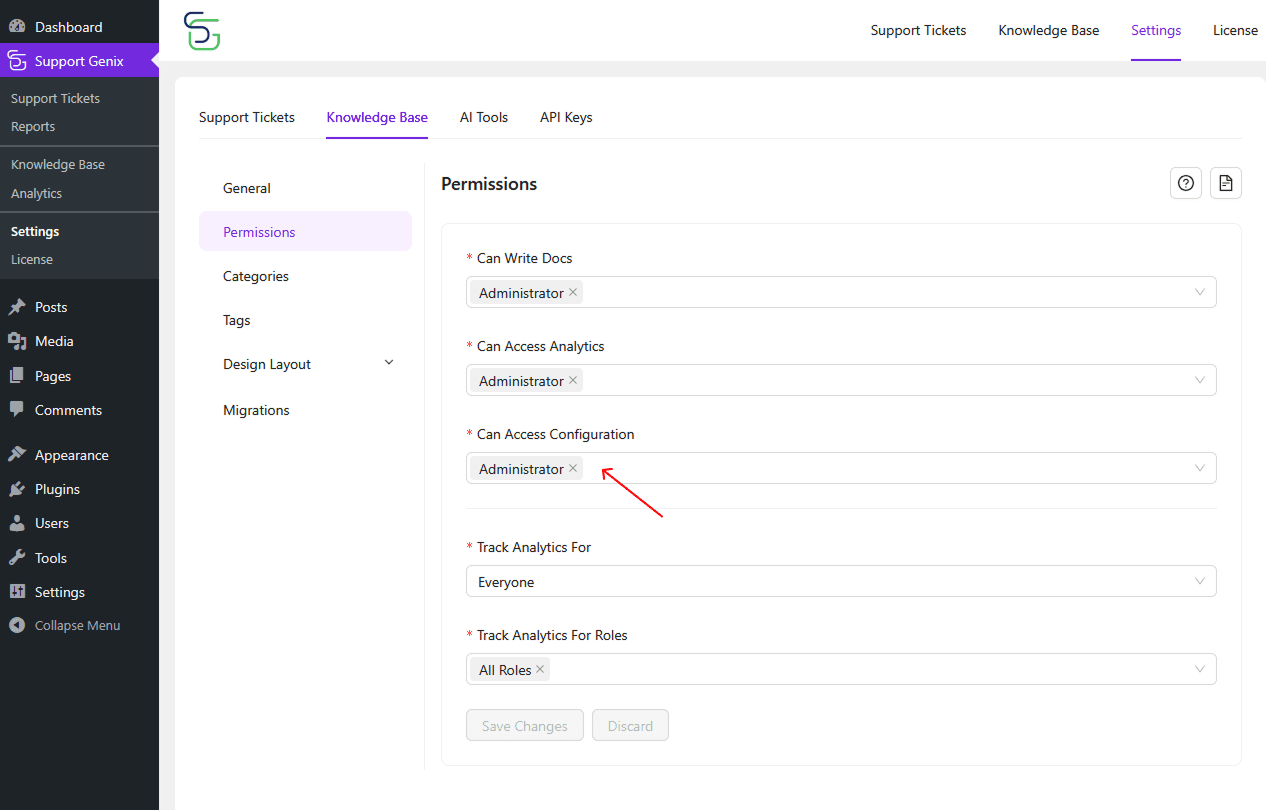
Who Can Access Configuration
Determine who can change core settings like slugs, layout, categories, and archive options in the Knowledge Base configuration.
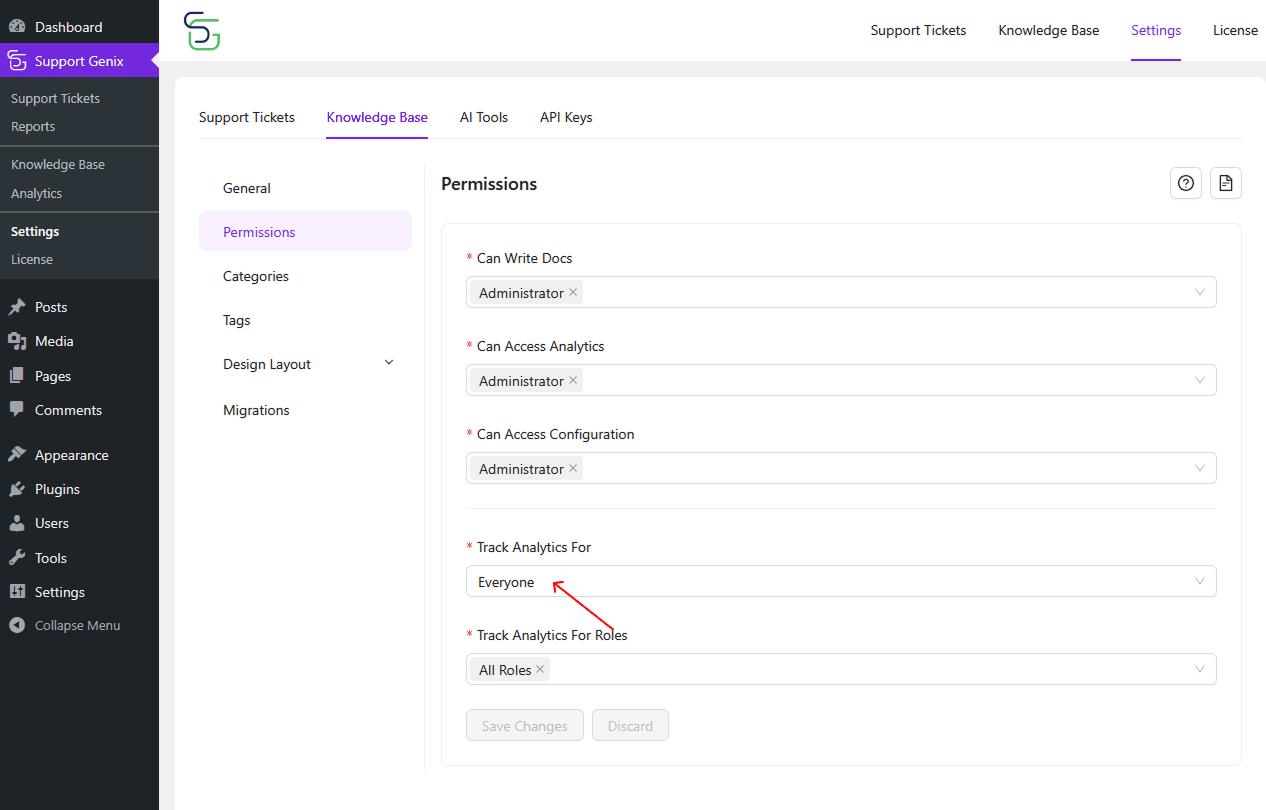
Track Analytics For
Select whether to track analytics for Everyone or only logged-in users.
This determines who contributes to article view and reaction data.
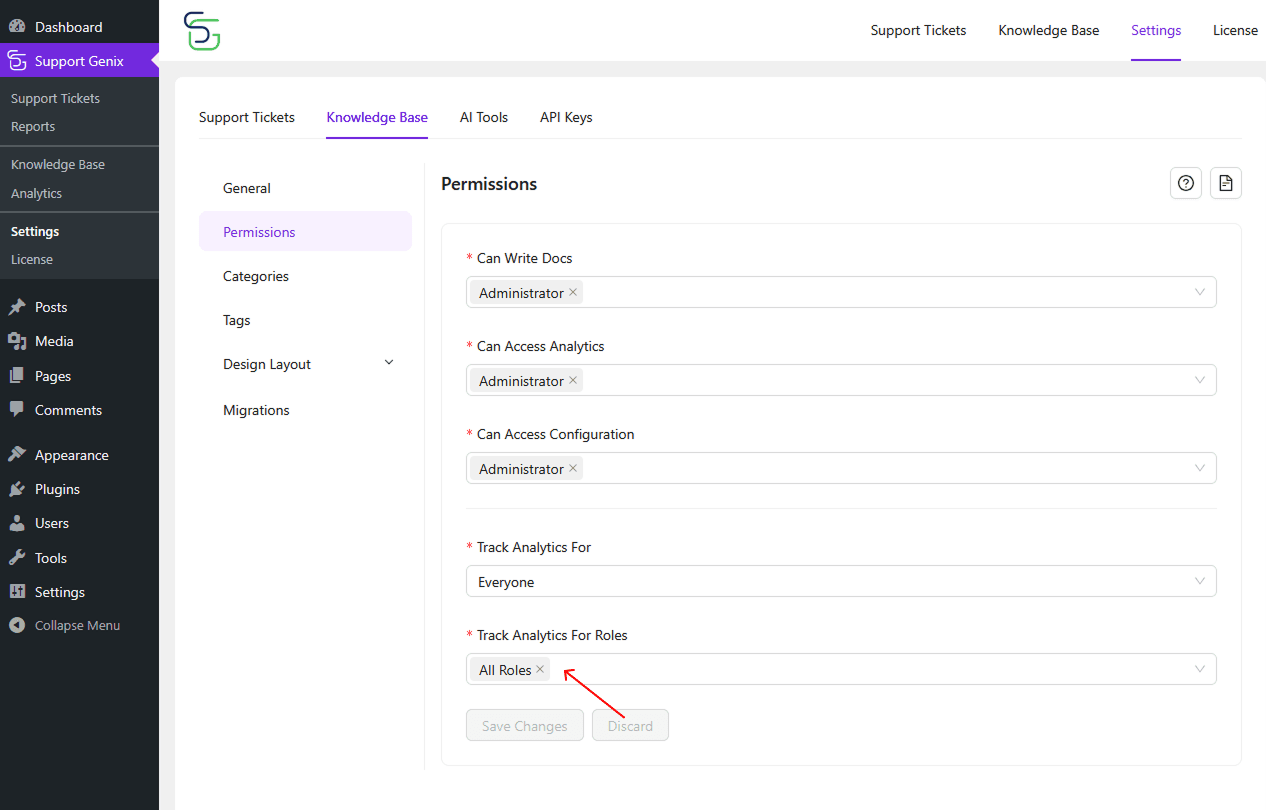
Track Analytics for Roles
You can restrict analytics tracking to specific WordPress roles.
Example: Track data only from Subscribers and Customers.
Last updated on December 22, 2025
Was this article helpful?
Powered by Support Genix