
How to Set Up Docs Archive, Single, Category, and Tag Templates in SupportGenix
SupportGenix provides built-in Blocks for Full Site Editing (FSE) themes to display your Docs Archive, Single Docs, Category and Tag pages seamlessly. However, if you’re using a classic theme, no blocks are required—simply flush your permalinks and your documentation pages will be ready to view.
For Full Site Editing (Block-Based) Themes
If you’re using a Full Site Editing (FSE) theme like Twenty Twenty-Five or any modern block-based theme, follow these steps to create or assign templates for your SupportGenix documentation pages.
Step 1: Enable Docs Archive
From your WordPress dashboard:
- Go to SupportGenix in the left sidebar.
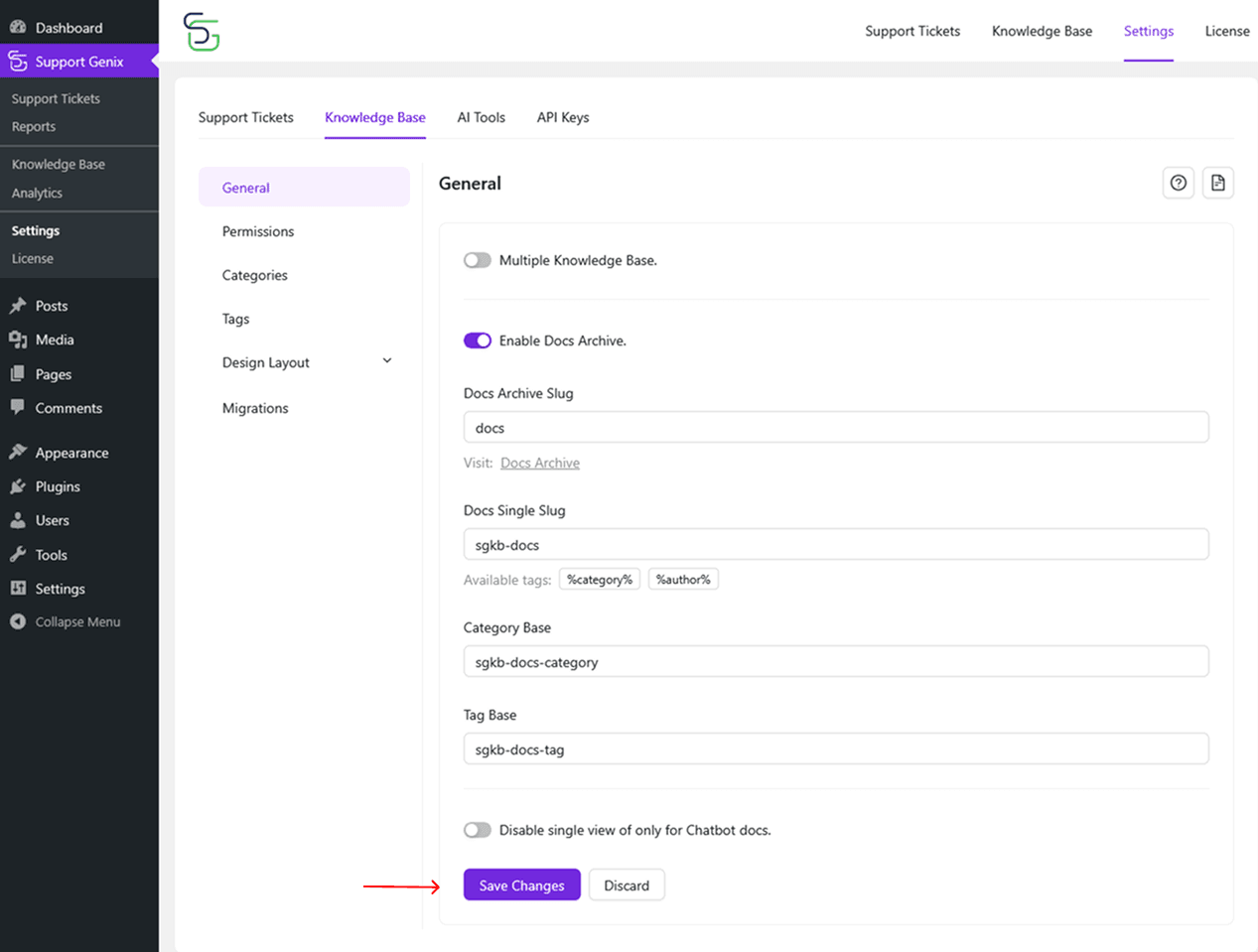
- Navigate to SupportGenix > Settings > Knowledge Base > General.
- Toggle Enable Docs Archive to ON.
- Click the Save Changes button at the bottom of the form.
Step 2: Open the Template Editor
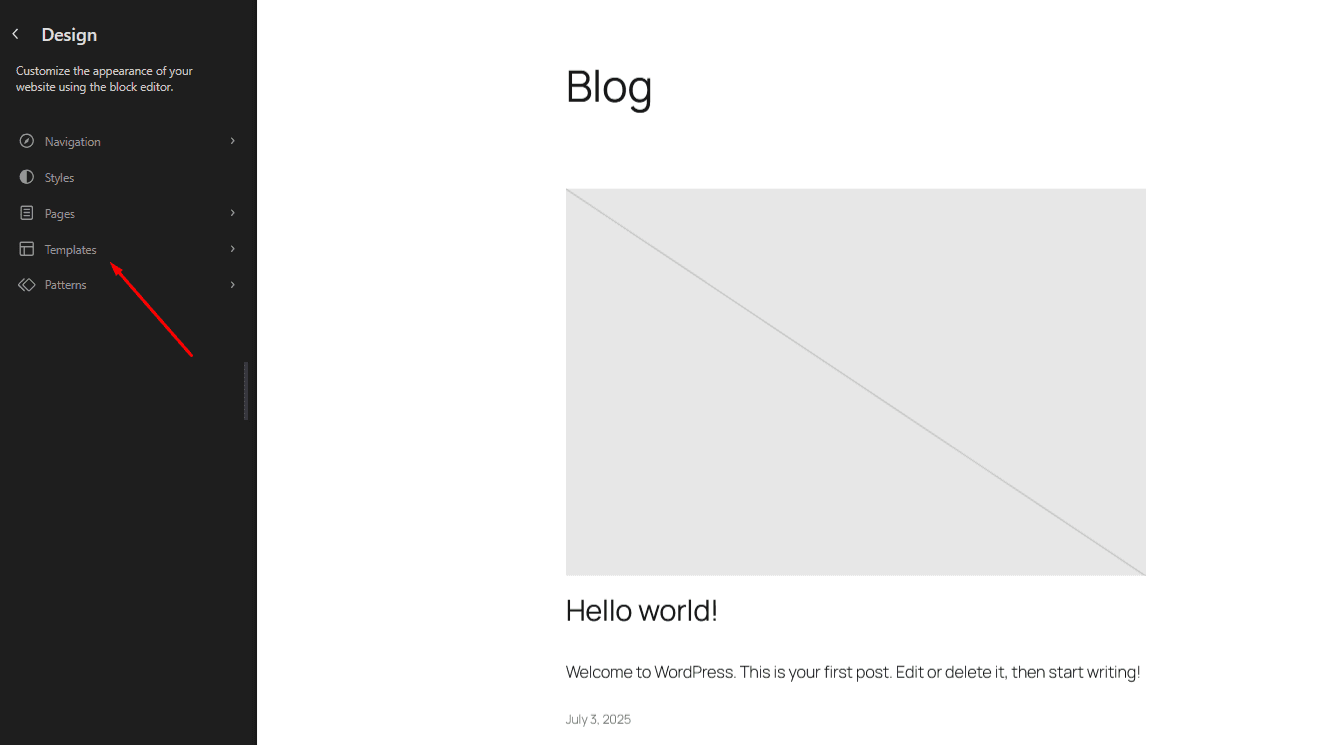
Go to your WordPress Dashboard and navigate to:
Appearance → Editor → Templates
Step 3: Add Template
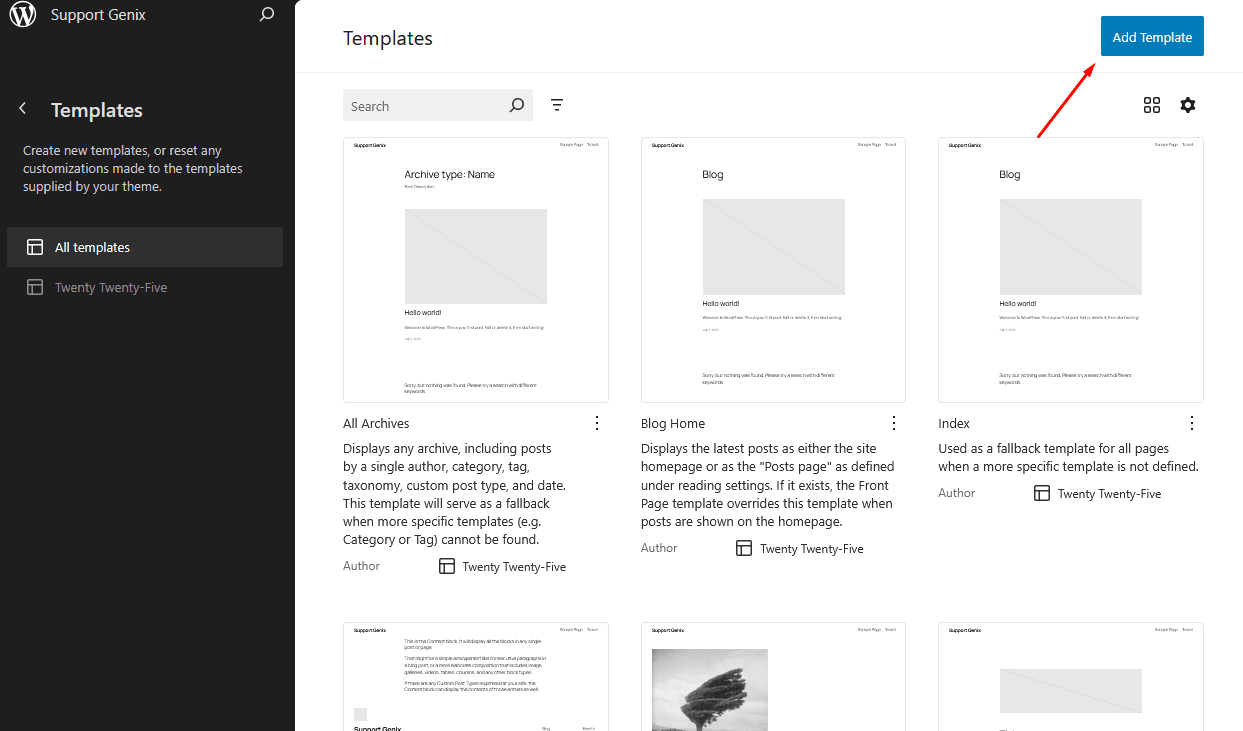
Click the “Add Template” button located at the top-right corner of the Templates screen to create a new layout for your SupportGenix Docs.
Step 4: Select Archive: Docs Template
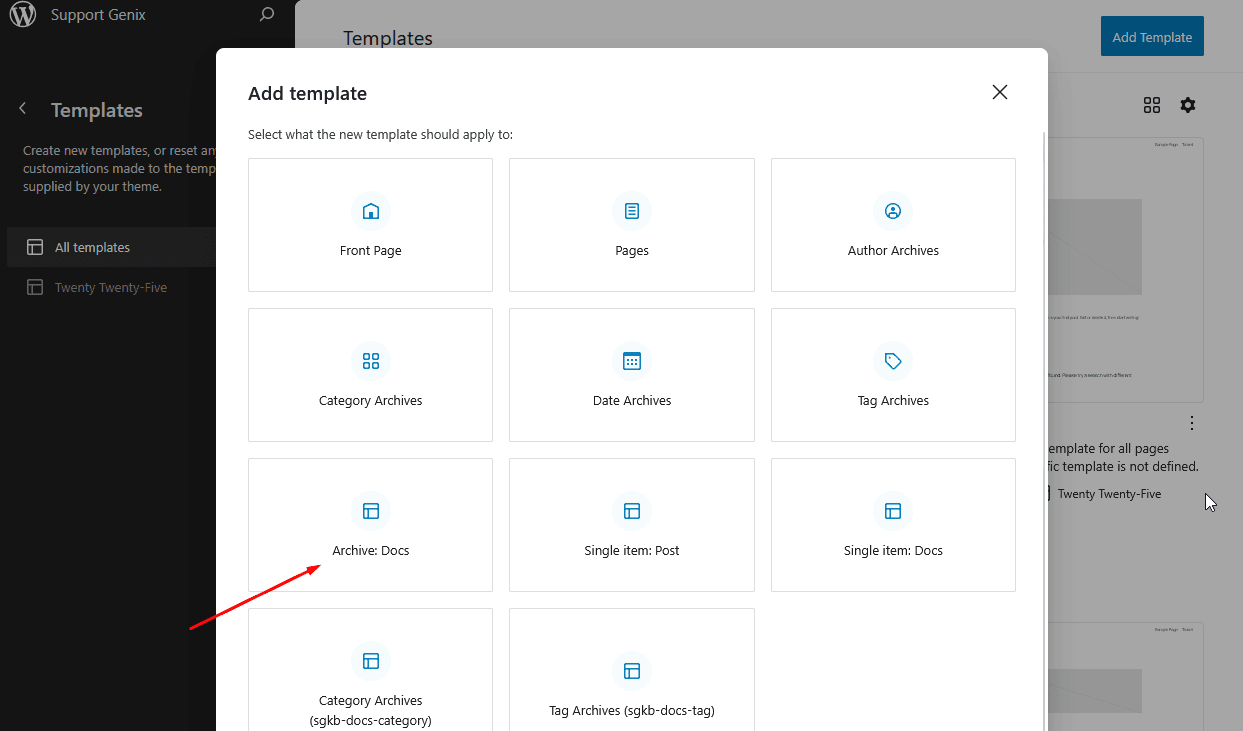
From the template selection panel, click on Archive: Docs to create a archive layout for your documentation.
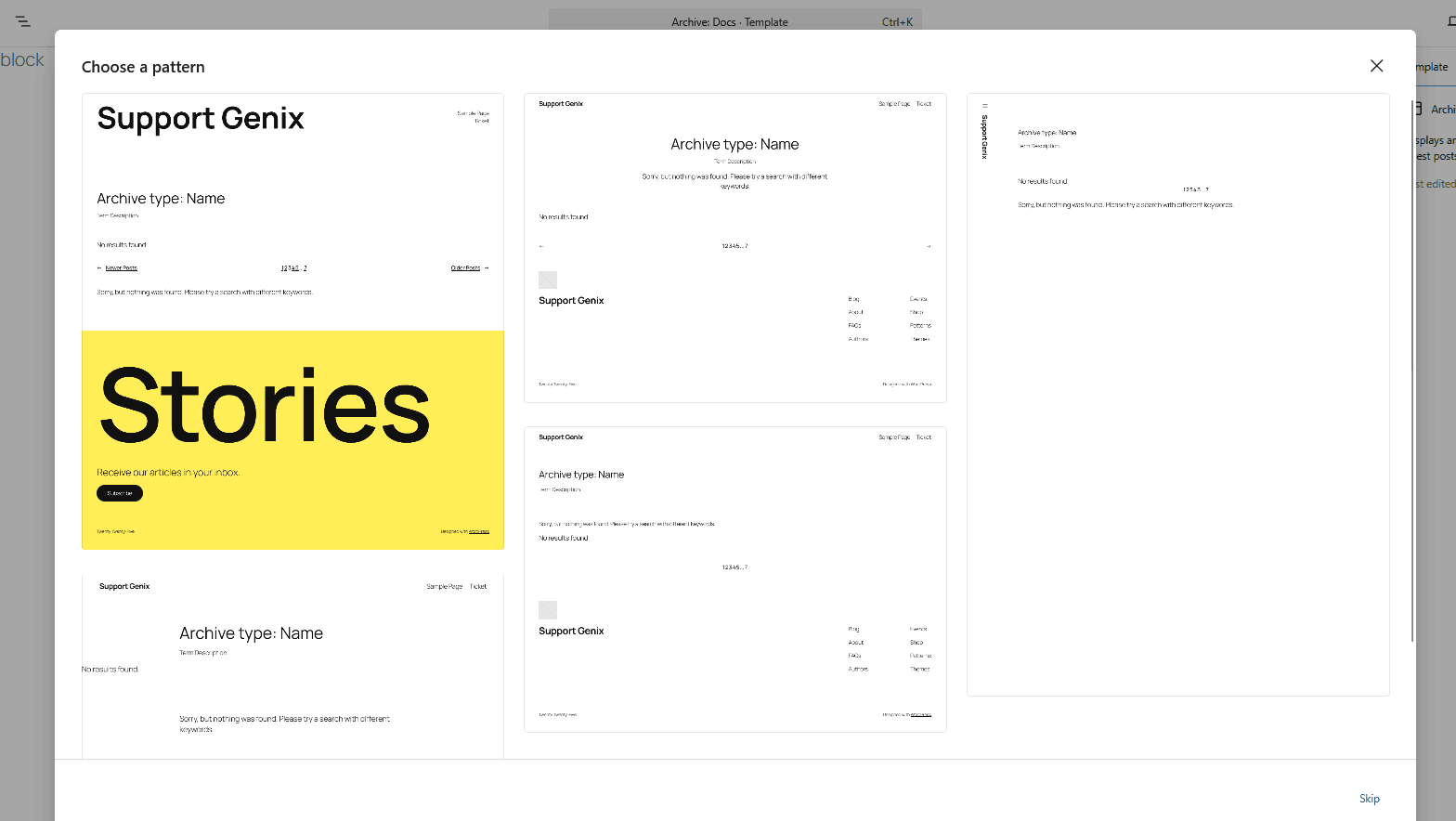
Step 5: Choose an Archive Pattern for Docs Layout
Select an existing archive pattern to structure your Docs archive layout.
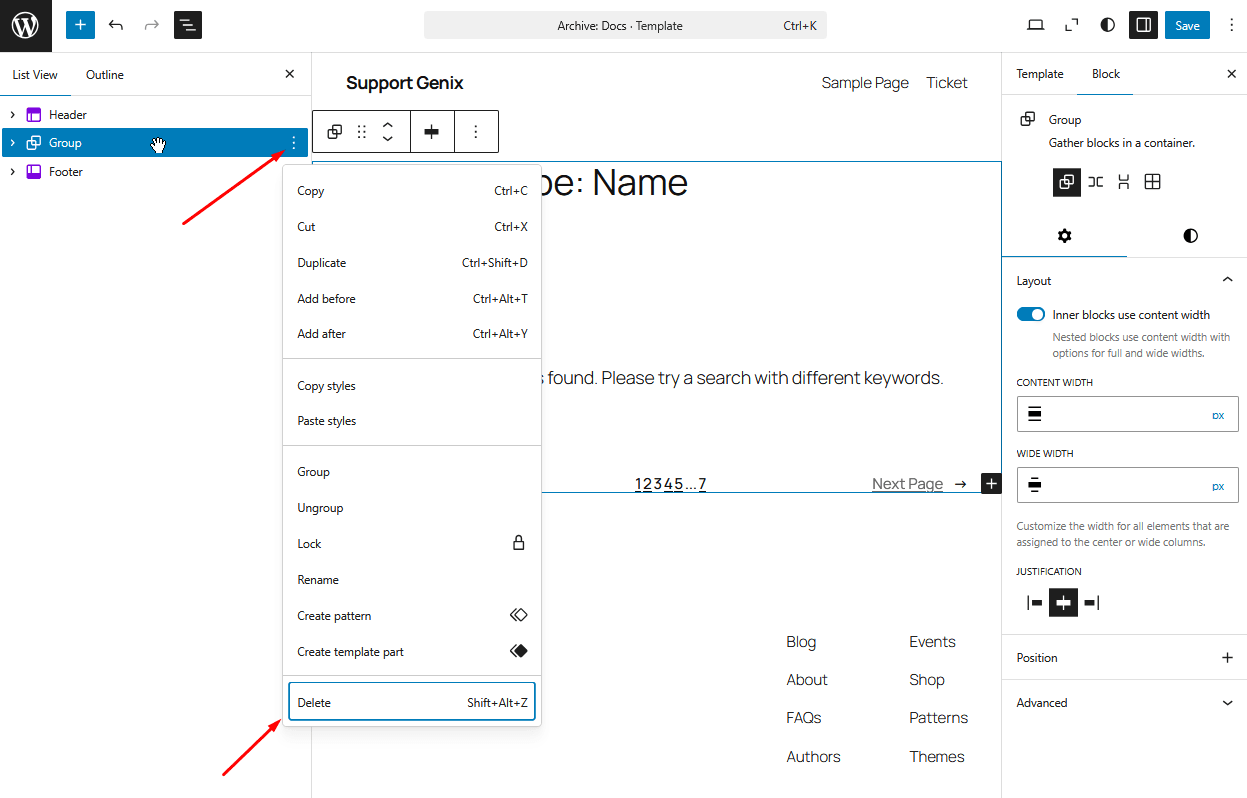
Step 6: Remove Unnecessary Blocks from the Template
Remove all blocks except the Header and Footer.
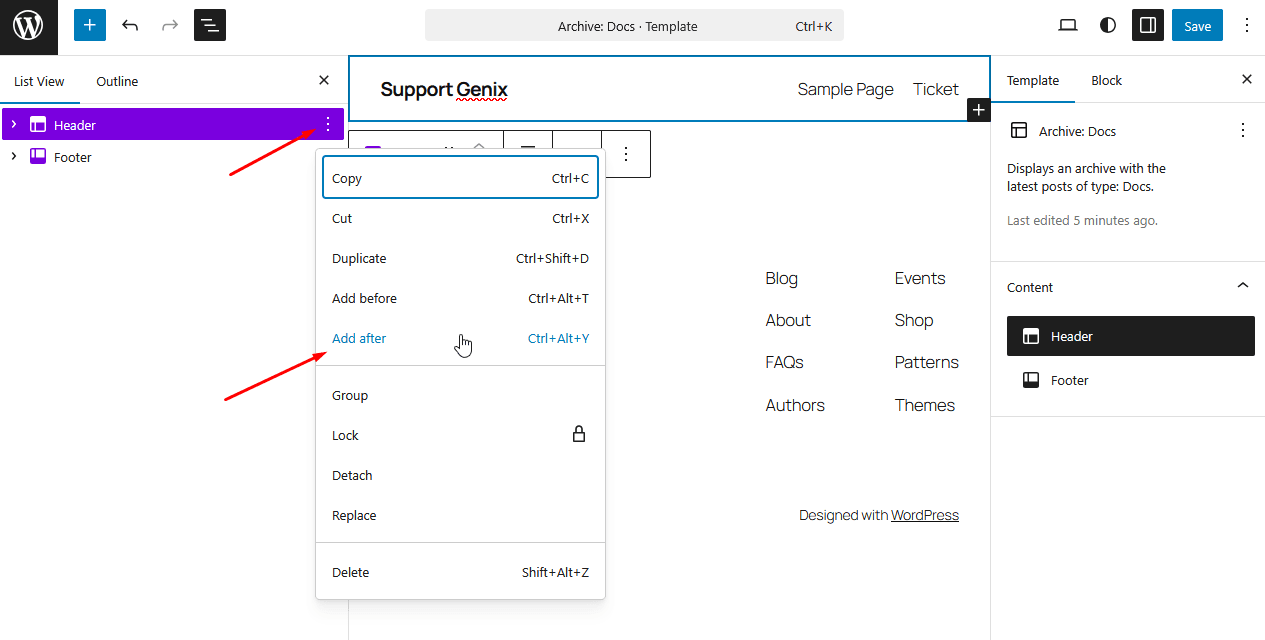
Step 7: Add a New Block After the Header
Click the three-dot menu on the Header block and choose “Add after”
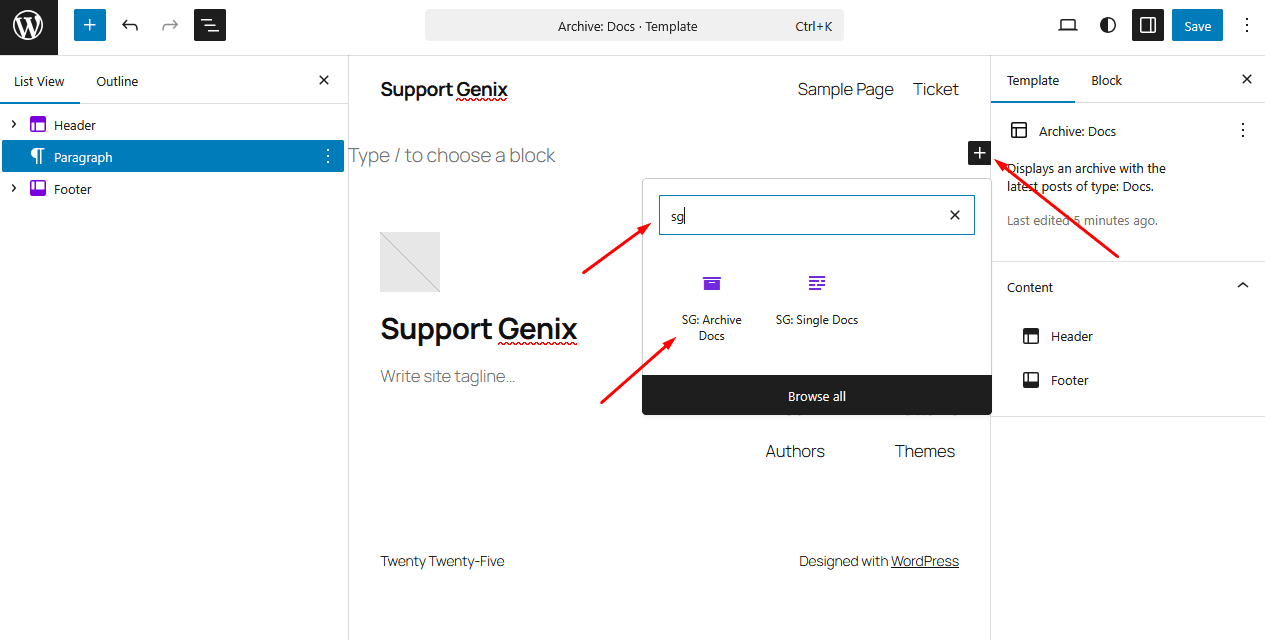
Step 8: Search and Insert SG: Archive Docs Block
Click the inserter (+) icon, search for “SG: Archive Docs,” and insert the block into the canvas.
Save Your Changes and Visit the Documentation Page
Click “Save” to apply your changes, then visit the Docs page to preview the template.
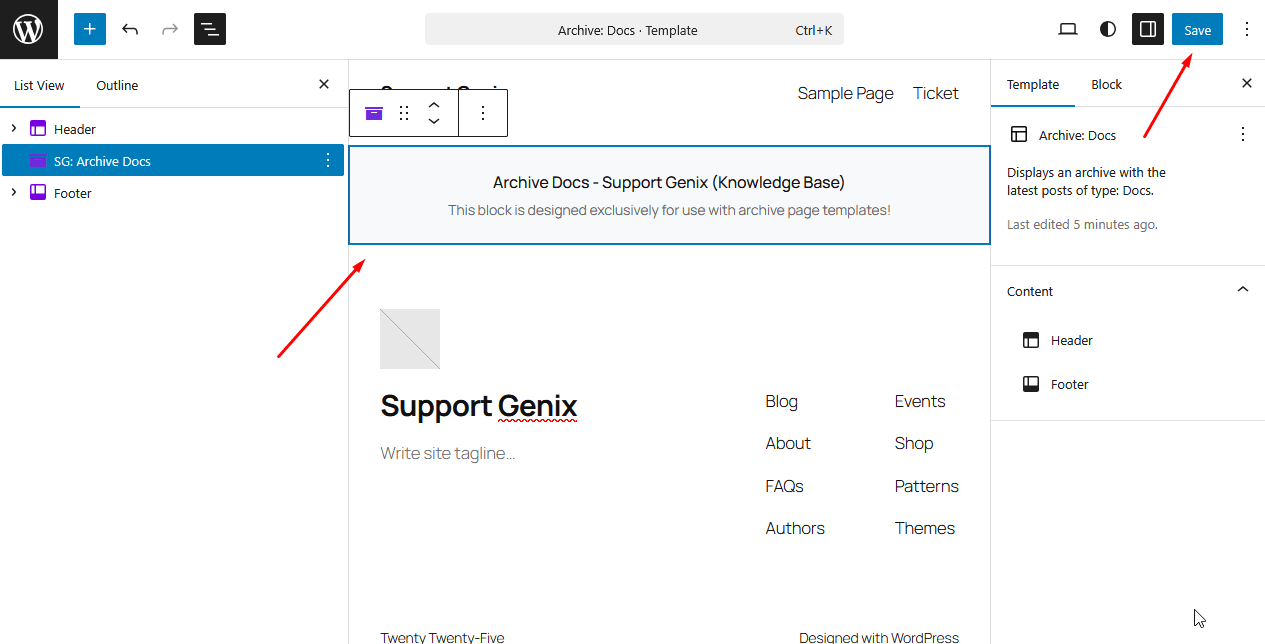
Repeat the same process for the following templates below:
- Single Docs
Select Single: Docs from the template options.
Insert the Single item: Docs block for single documentation.
Customize the layout as needed.
Click Save and Visit a single doc page to preview changes. - Category Archives
Select Category Archives (sgkb-docs-category) from the template list.
Insert the block for category archives.
Adjust the layout according to your design.
Click Save and Visit a category archive page to verify the output. - Tag Archives
Select Tag Archives (sgkb-docs-tag) from the template list.
Insert the block for tag archives.
Customize the block layout as preferred.
Click Save and Visit a tag archive page to view the final result.
For Classic Themes (Non-FSE)
If you’re using a classic theme (like Astra, GeneratePress, or older WordPress themes), no manual template editing is required.
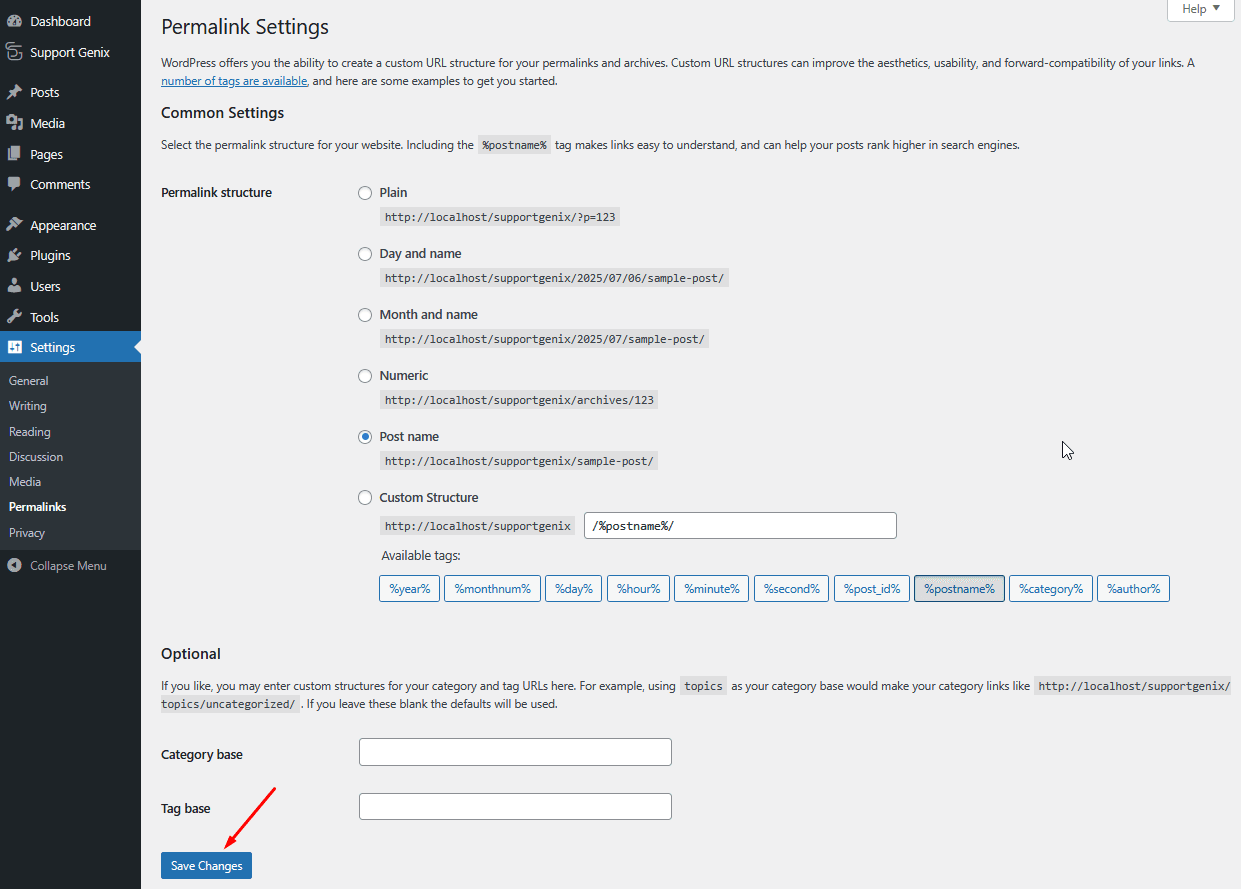
Flush Permalinks:
- Go to WordPress Dashboard > Settings > Permalinks
- Click the Save Changes button to flush permalinks.
Now visit any documentation page or archive — Support Genix will automatically load the correct layout.
Need Help?
Support Genix ensures compatibility with both modern block themes and classic ones. If your documentation pages don’t appear as expected, double-check template assignments or contact our support team.
Last updated on December 22, 2025
Was this article helpful?
Powered by Support Genix